Freesbe
Business and up

Show it, circle it, and move on.

Share a window, a tab or your whole screen in any huddle or meeting. Anyone in the call, guests included, can draw on it to point something out, each in their own colour with their name beside the line. Two people can share at once, with a tab for each screen and Show both to compare them side by side.

  • Point at the exact line without saying 'top left, no, a bit lower'.
  • Compare two screens side by side when two people share at once.
  • Choose the layout: screen and people, a strip, or the screen only on your whole monitor.
  • See what you're sharing: the desktop app frames the window or screen you share.

For Anyone who reviews work, demos a product or walks a colleague through a screen.

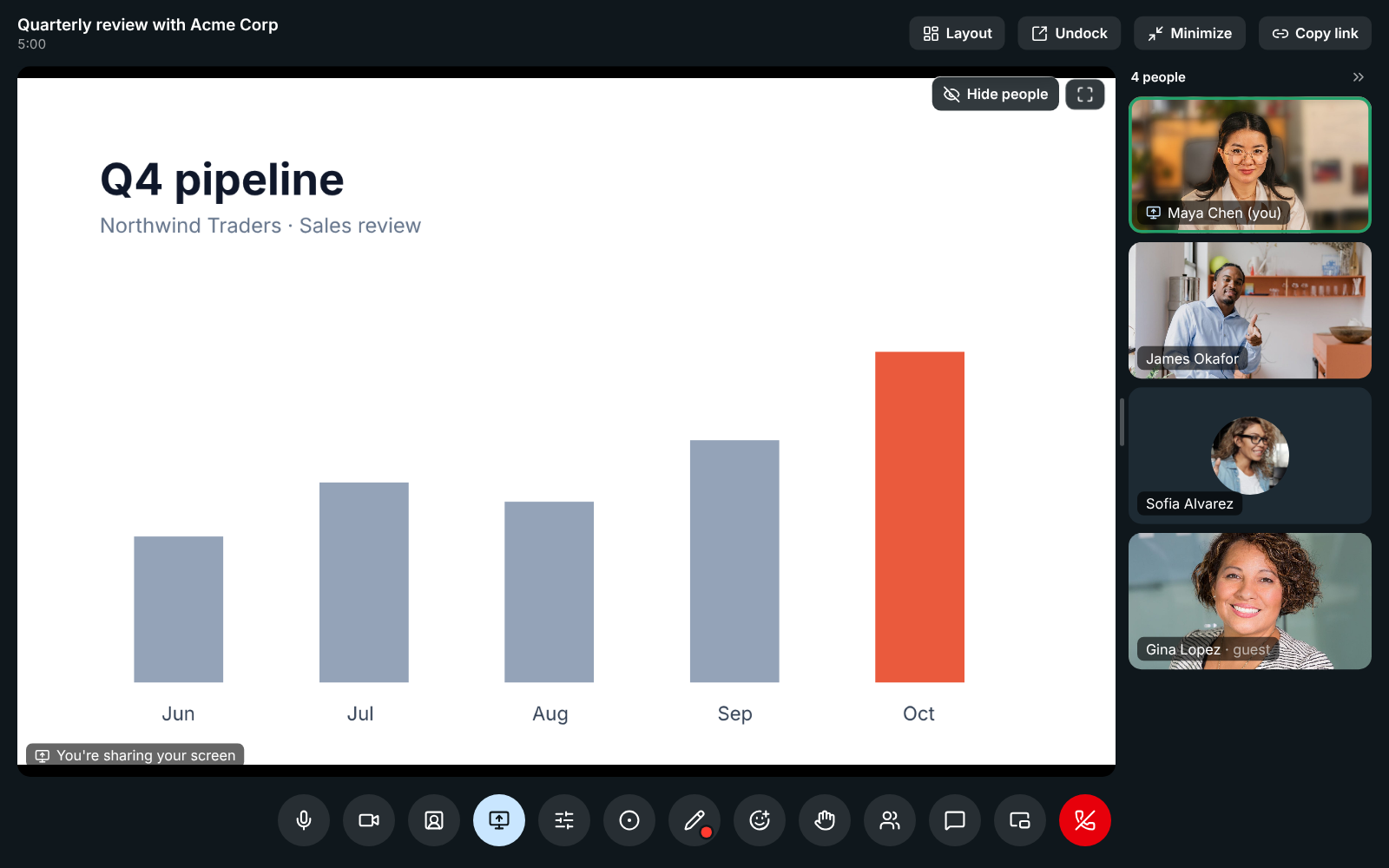
Maya Chen sharing a chart: her screen fills the top, the Share screen button is lit, and a screen icon sits next to her name on her tile

Draw on any shared screen

While someone shares, click the pencil and draw over the screen. Everyone sees the line as you draw it, with your name next to it, and it fades about 2 seconds after you let go. Each person keeps their own colour for the whole call, several people can draw at once, and the lines land on the right part of the screen whatever size each person's window is. Nothing drawn is saved or recorded. Hosts can turn drawing off for everyone for the rest of the call.
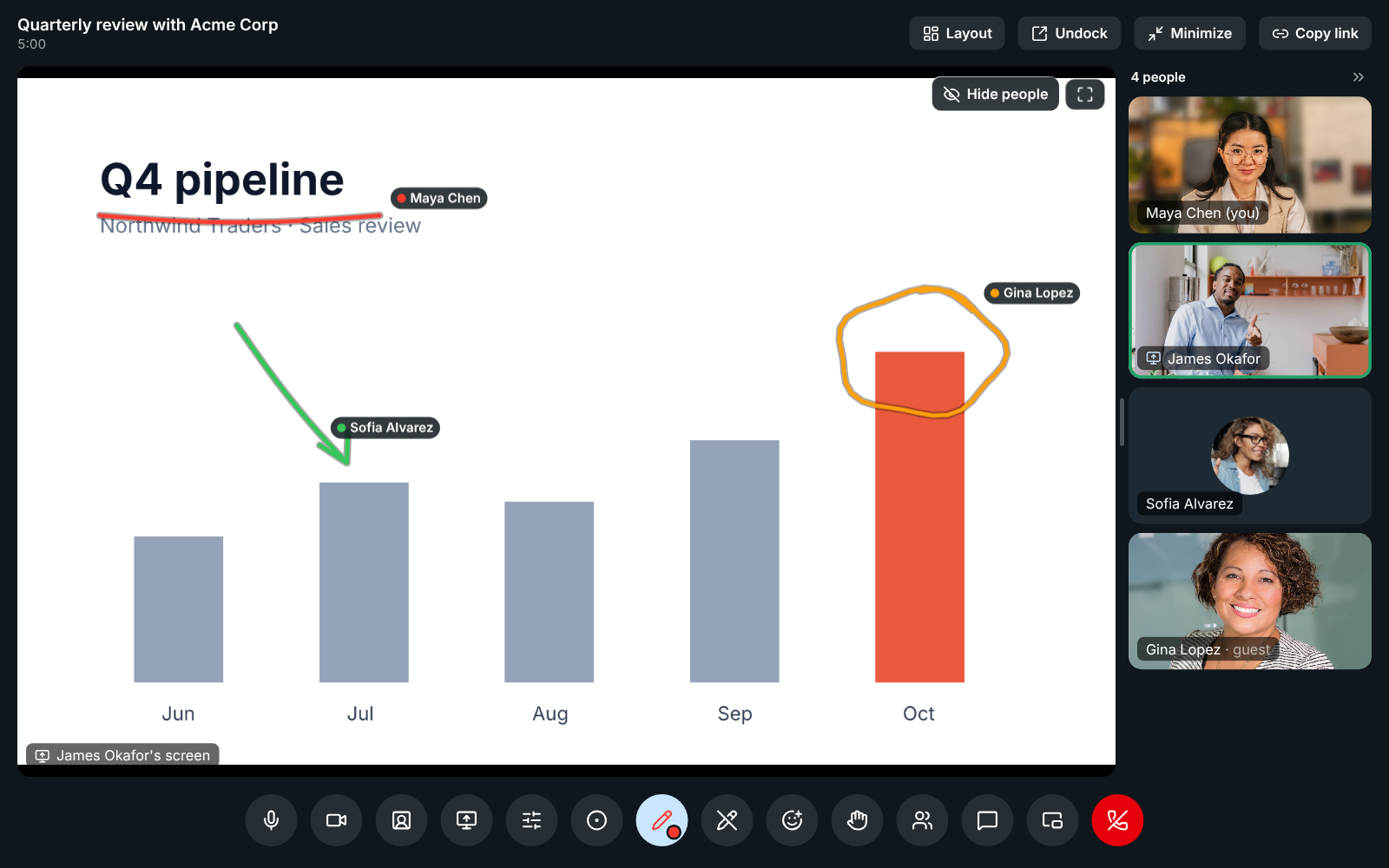
James Okafor's Q4 chart shared in a meeting: Gina Lopez has circled October's bar in orange, Sofia Alvarez points an arrow at July in green, and Maya Chen underlines the title in red

Two people share at once

More than one person can share at the same time. Each shared screen gets a tab above the stage with a live picture of it, and the newest share comes up front with a New badge. Click a tab to see that screen big, or Show both to put every shared screen side by side and compare them. A meeting recording shows the newest share big. It works the same in a huddle made bigger.

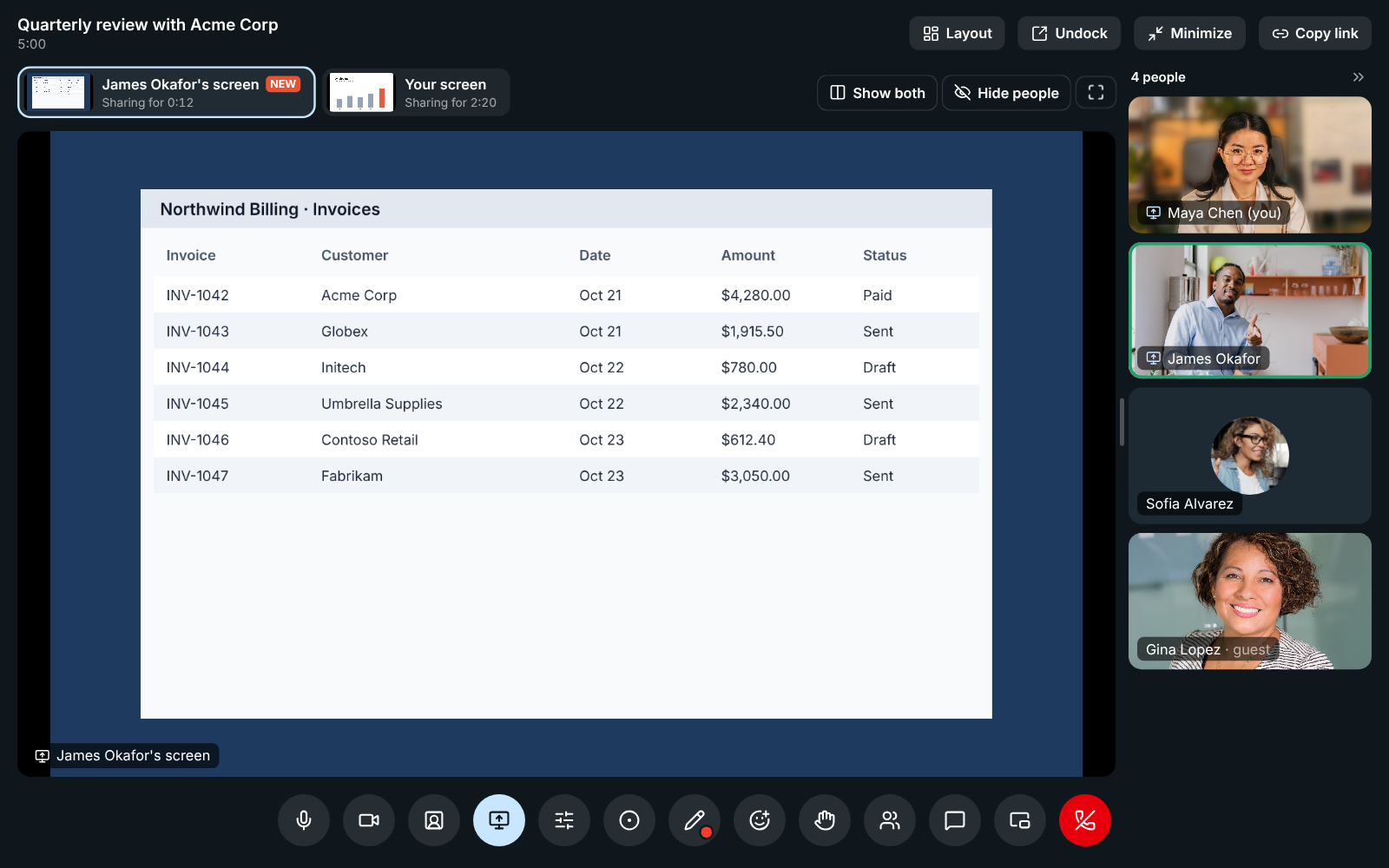
Maya Chen and James Okafor both sharing: a tab for each screen above the stage, James's invoices up front with a New badge, and Show both at the end of the row

See it on your own team's data.

Start free with up to 10 people and try it today, or book a 20-minute demo with the people who make Freesbe.

The layout you want

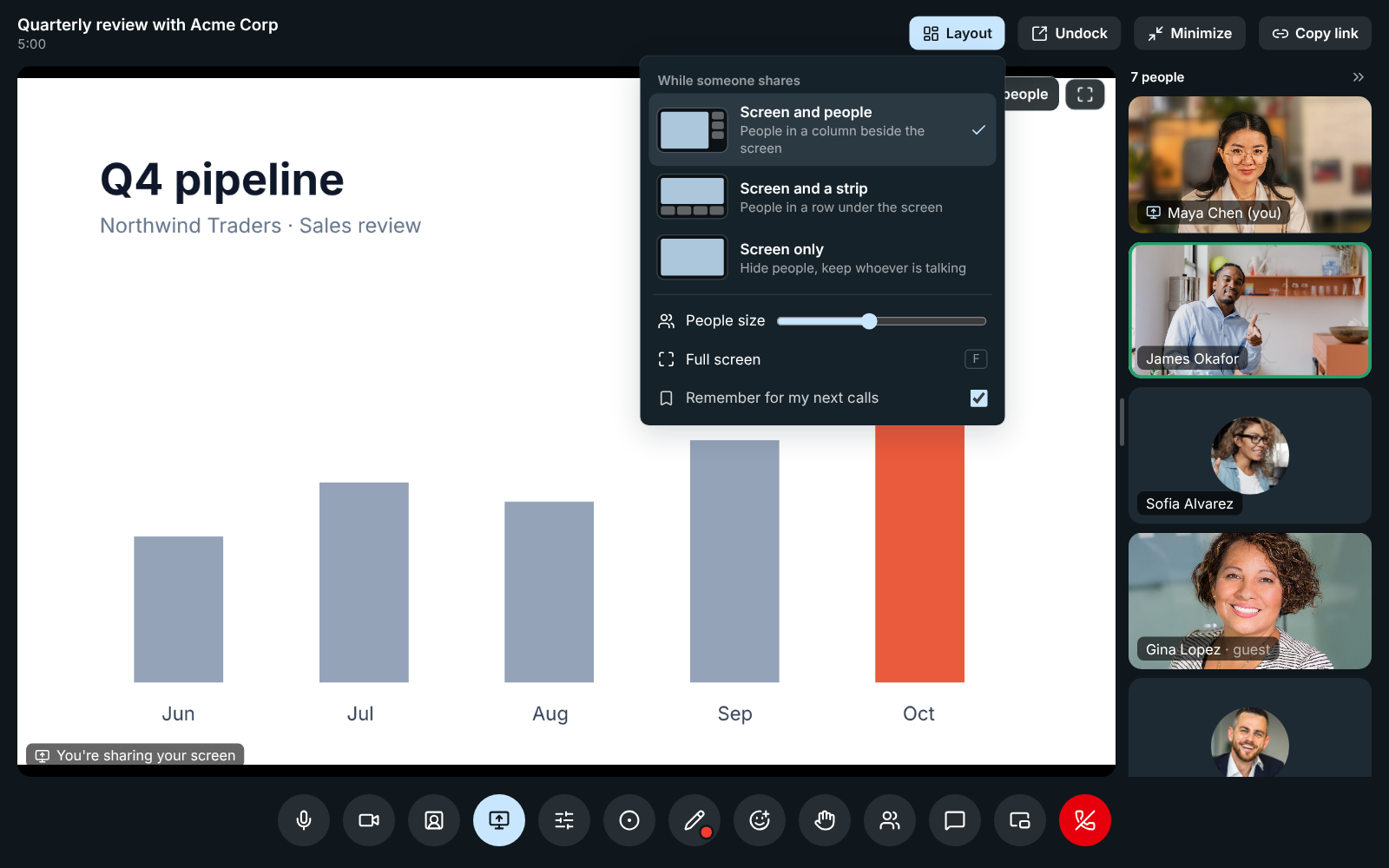
Layout picks where everyone else goes while a screen is shared: beside it in a column, in a strip under it, or hidden so the screen gets the whole stage with whoever is talking small in a corner. Make people's tiles smaller or bigger, drag the edge of the column, and press F to put the screen on your whole monitor. Your layout is kept for your next calls unless you turn that off.

The Layout menu open over a shared chart: Screen and people, Screen and a strip, Screen only, People size, Full screen and Remember for my next calls

Pick what to share, and see what others see

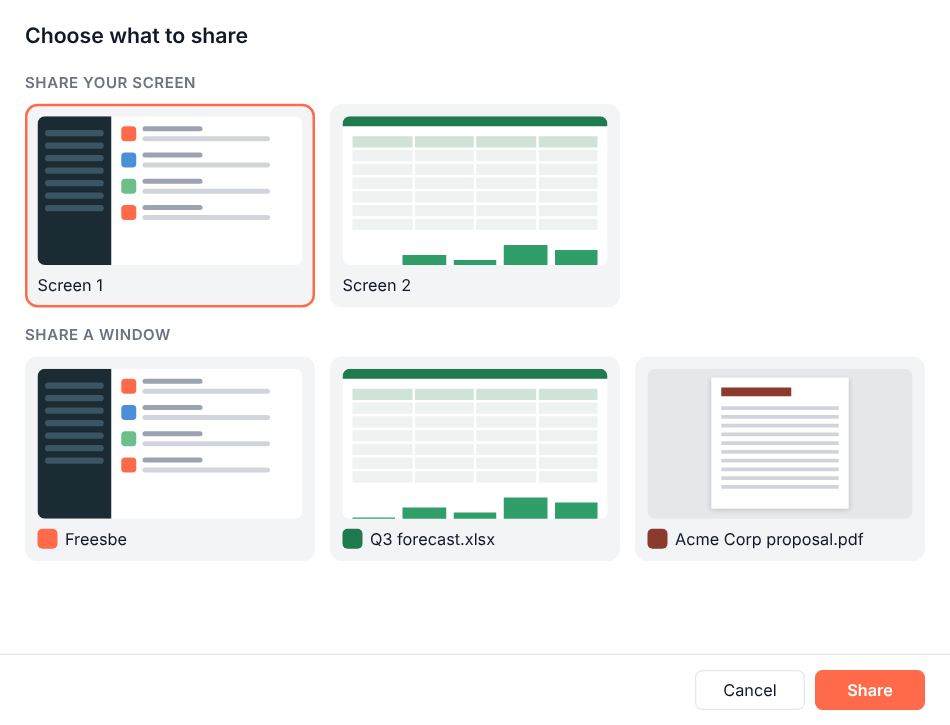
Share screen offers a window, a tab or your whole screen. In the desktop app a frame goes around what you share, with a Stop sharing bar at the top, so you always know what the others are looking at. The button stays lit while you share; click it again to stop. A weak connection keeps the sound first, and shared screens keep showing while cameras pause.

The picker for what to share: a window, a tab or the whole screen

Plans and pricing

Screen sharing and drawing is included in Business, Corporate and Enterprise.

  • BusinessUp to 500 people
  • CorporateUp to 2,500 people
  • EnterpriseOver 2,500 people

Questions

Which plan includes this?
Screen sharing comes with Business, Corporate and Enterprise, with group video, each with a monthly video allowance pooled across the workspace. The Free plan has voice huddles and 1:1 video.
Can guests draw on my screen?
Yes. Anyone in the call can draw, guests included, each in their own colour with their name beside the line. Hosts and co-hosts can turn drawing off for everyone.
Can someone control my shared screen?
Only if an admin has turned on remote control, you shared your entire screen from the desktop app, and you clicked Allow. See the remote control page.
Is what I draw saved?
No. Lines fade about 2 seconds after you let go, nothing drawn is saved or recorded, and the lines go away when the screen stops being shared.

Try all of it free with up to 10 people.

No card, no time limit. Invite your team and see what sticks.