Freesbe
Business and up

Your calendar tells the team when you're free.

Connect your Google, Microsoft or Zoho calendar and teammates see when you're busy while they schedule a meeting, your status switches to In a meeting while you're in one, and Find a time suggests a slot that works for everyone. Freesbe sees only when you're busy, never your meetings' titles, places or people.

  • Stop asking when people are free: the meeting scheduler already knows.
  • Show In a meeting automatically, and clear it when the meeting ends.
  • Connect a different account from the one you sign in with.
  • Share only busy and free, nothing about what the meetings are.

For Teams who schedule meetings across Google Workspace, Microsoft 365 and Zoho.

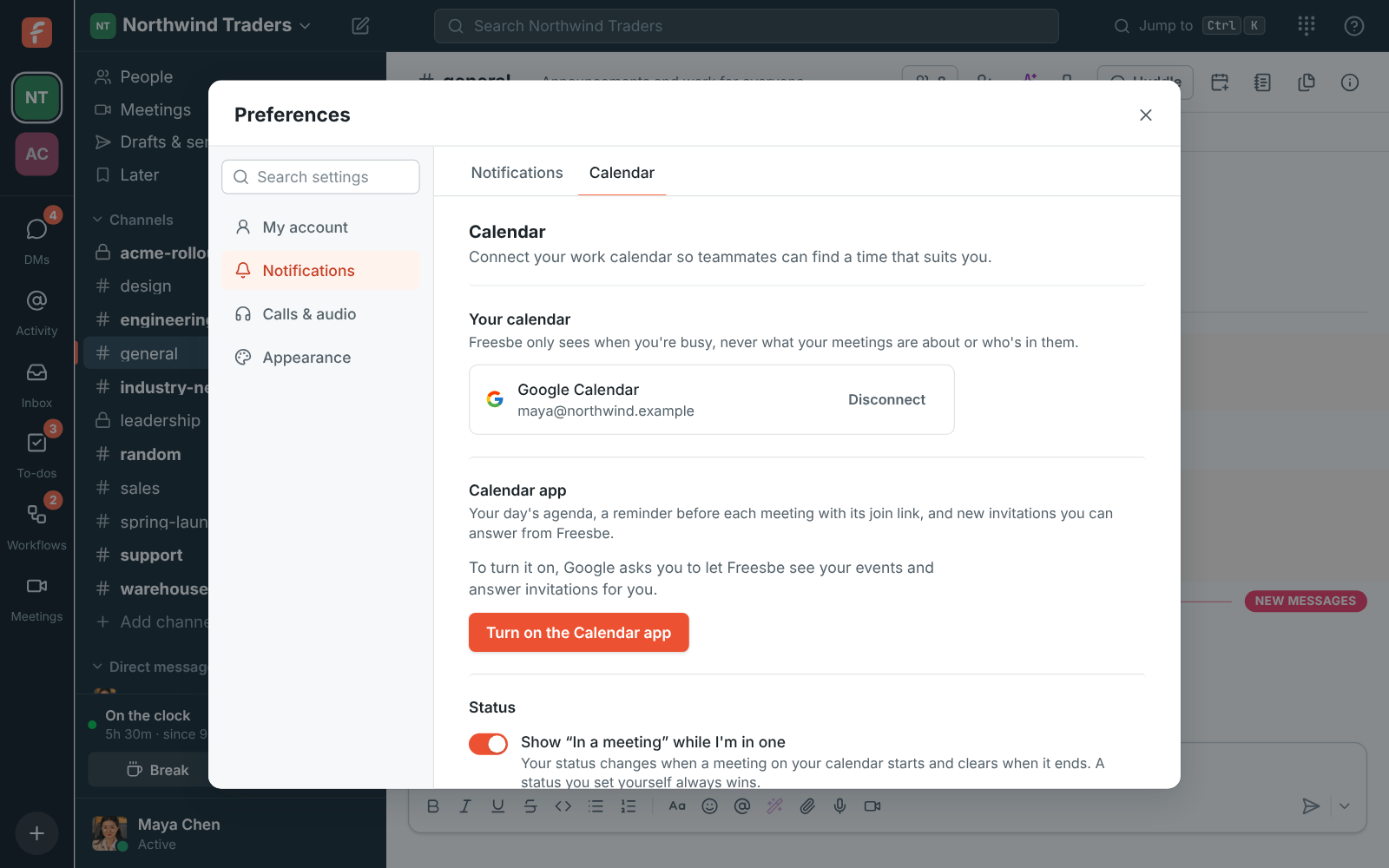
Preferences, Calendar: a connected Google calendar and the In a meeting setting

Connect in Preferences, with one permission

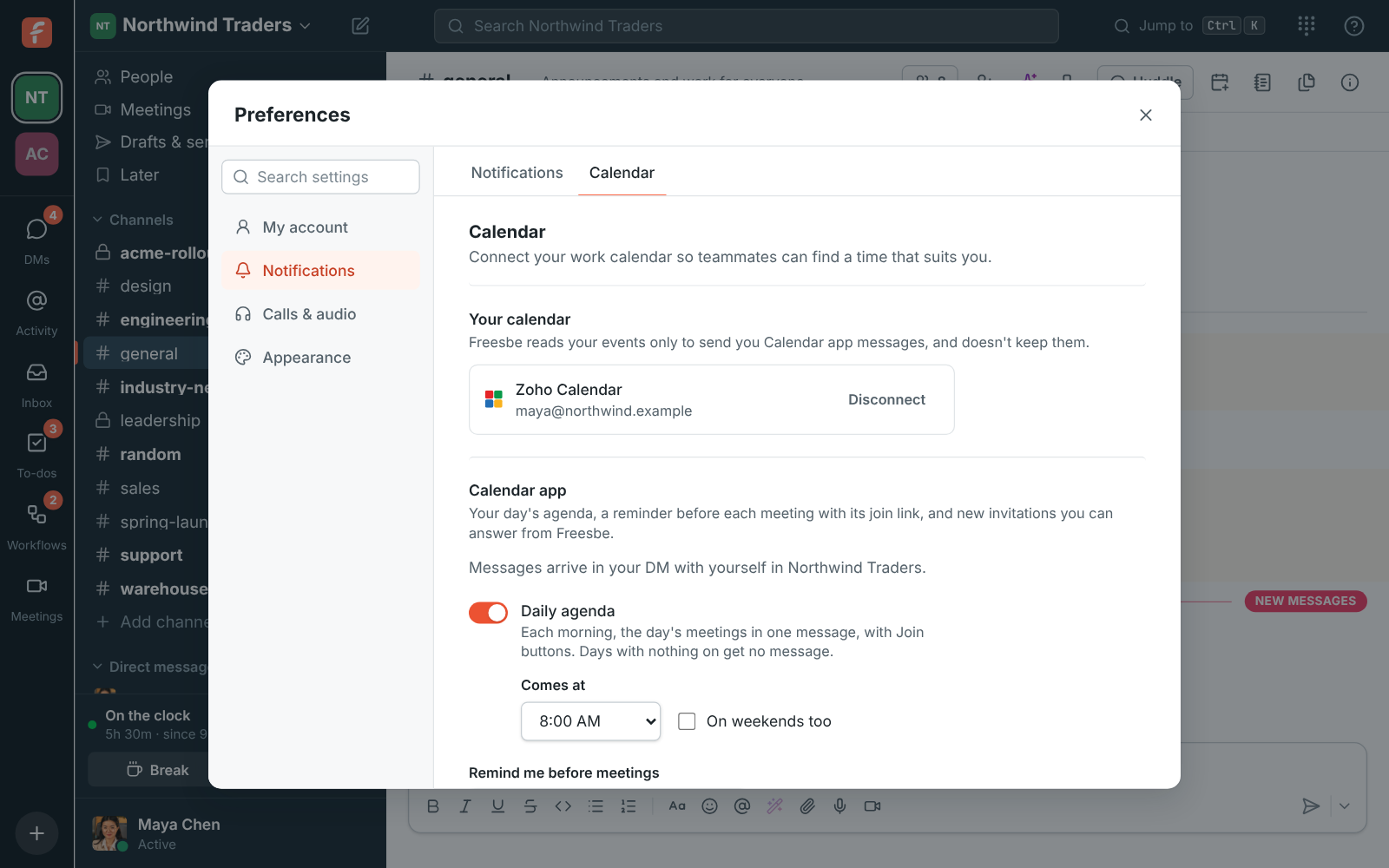
Open Preferences, choose Calendar, and click Connect Google Calendar, Connect Microsoft Calendar or Connect Zoho Calendar. Sign in to that account, which can be a different one from the account you sign in to Freesbe with, and allow Freesbe to see when you're busy. In the desktop app, Connect opens Freesbe in your browser; connect there and the app picks it up. Disconnect removes Freesbe's access.
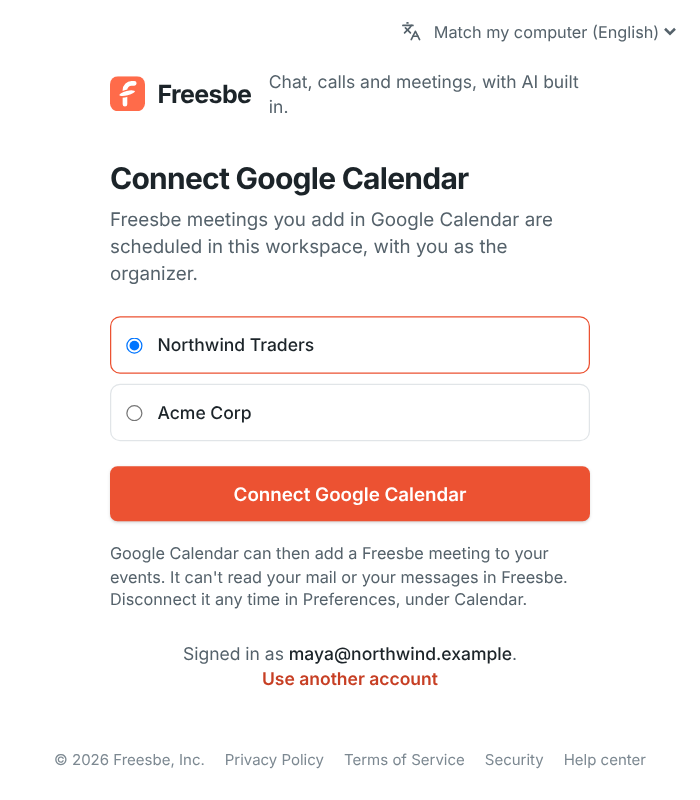
Connecting Google Calendar from Preferences

Busy or free, and nothing else

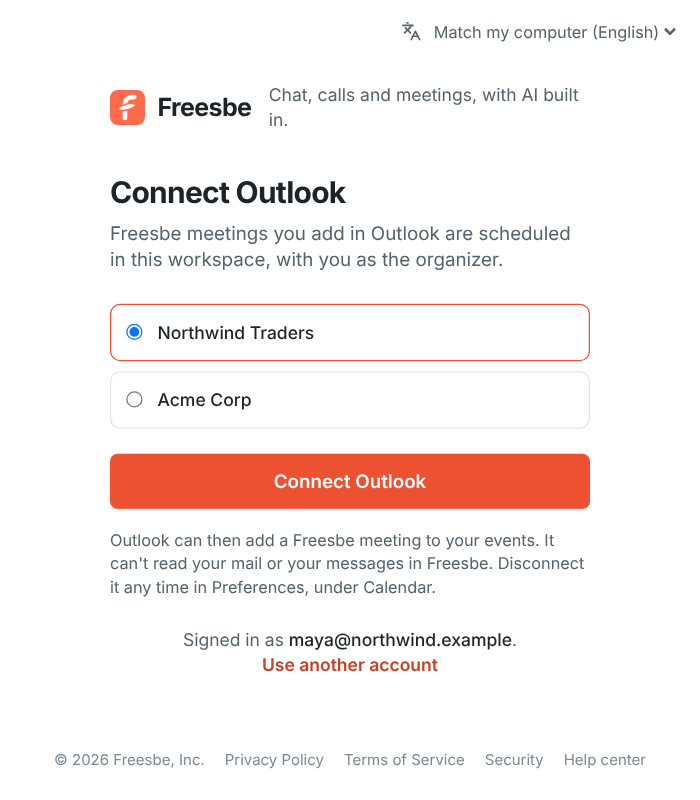
Freesbe only sees when you're busy, never your meetings' titles, places or who's in them, unless you turn on the Calendar app for a daily agenda, reminders and invitations you can answer in Freesbe. Events marked free or cancelled don't count. If your work account says it needs an admin's approval, your IT admin approves Freesbe for the organization once.

Connecting a Microsoft calendar and allowing Freesbe to see when you're busy

See it on your own team's data.

Start free with up to 10 people and try it today, or book a 20-minute demo with the people who make Freesbe.

In a meeting, set and cleared for you

With a calendar connected, Show In a meeting while I'm in one sets your status when a meeting on your calendar starts and clears it when it ends. Back-to-back meetings keep it on until the last one ends. A status you set yourself always wins, and if you clear the automatic one it stays off until that meeting ends. Turn the setting off to stop it, which clears it straight away.

Preferences, Calendar: a connected Zoho calendar

Find a time that works for everyone

When someone schedules a meeting, Freesbe looks at every invitee's connected calendar, their working hours and whether they've paused notifications, and suggests times that are free for all of them. The meeting lands on each person's calendar, and your booking pages show only the slots that are free in yours.

The Calendar preferences with a connected calendar

Plans and pricing

Google, Microsoft and Zoho calendars is included in Business, Corporate and Enterprise.

  • BusinessUp to 500 people
  • CorporateUp to 2,500 people
  • EnterpriseOver 2,500 people

Questions

Which plan includes this?
Calendar free/busy comes with Business, Corporate and Enterprise. See pricing for the plans.
What does Freesbe see in my calendar?
Only when you're busy. Titles, places and attendees stay with your calendar unless you turn on the Calendar app, which shows you your own agenda and invitations in Freesbe.
Can I use a different account?
Yes. The calendar account can be different from the one you sign in to Freesbe with; you sign in to it when you connect.
Can admins turn it off?
The Calendar app and the add-ins that put a Freesbe meeting in Outlook and Google Calendar have switches in workspace settings. Each person connects and disconnects their own calendar.

Try all of it free with up to 10 people.

No card, no time limit. Invite your team and see what sticks.