Freesbe
All plans

Write it tonight, send it at nine.

Schedule a Freesbe message to go out later: later today, tomorrow morning, Monday morning, or any date and time up to 120 days ahead, in channels, DMs and threads, with files. Freesbe sends it even if your computer is off. Drafts follow you to every device, and Drafts & sent lists drafts, scheduled and sent messages in one place.

  • Land a message at the start of someone's day instead of the end of yours.
  • Send from Freesbe at the time you picked, with your computer off.
  • Start a draft on your computer and finish it on your phone.
  • Change your mind: send now, reschedule, edit or delete before it goes out.

For Managers and teams across time zones who write when it suits them and send when it suits others.

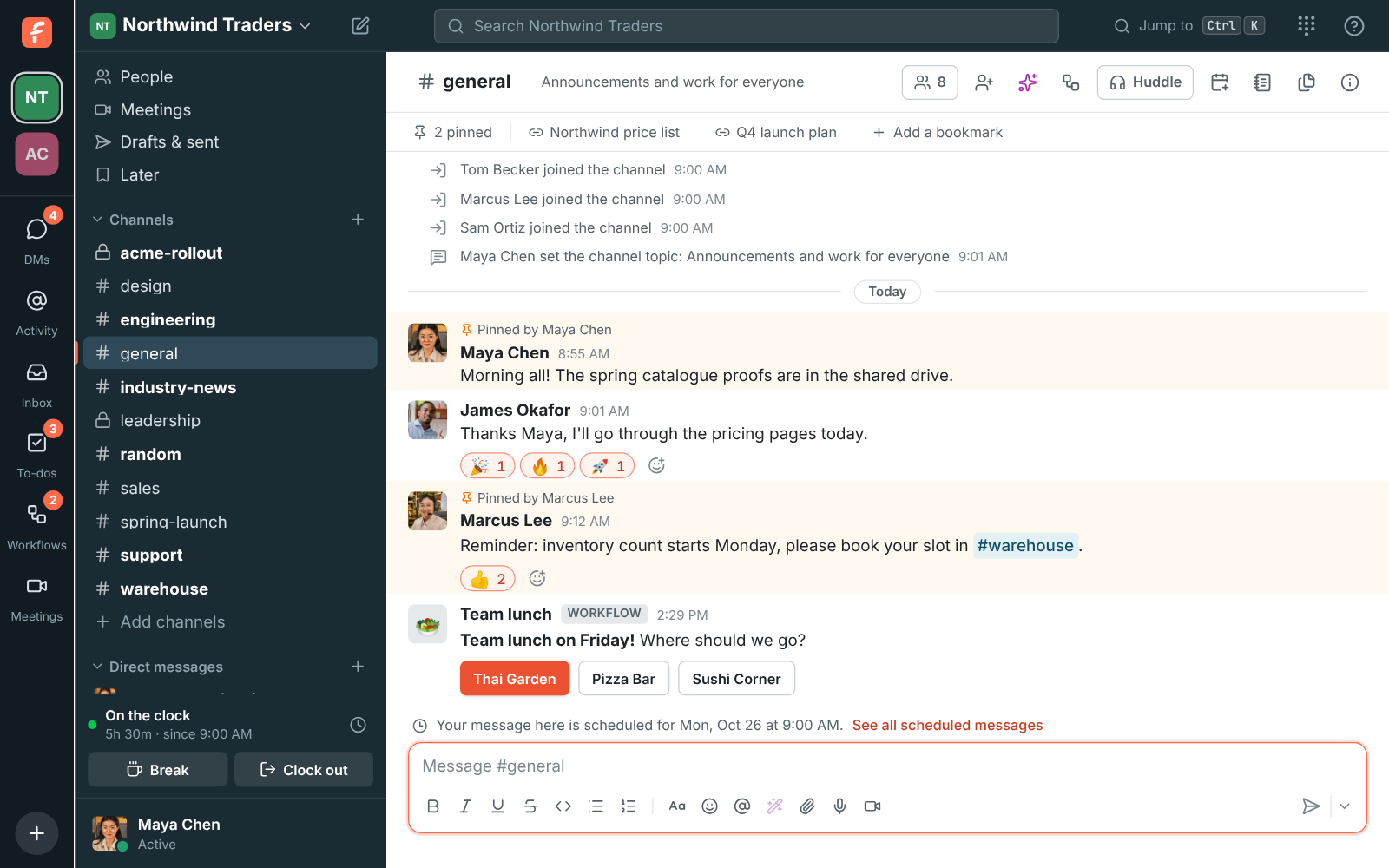
#general with a note above the message box: your message here is scheduled for Monday at 9:00 AM

Pick a time next to Send

Type the message as usual, then click the arrow next to Send. Pick later today, tomorrow morning, Monday morning, or Custom time for any date and time up to 120 days ahead, in your own time zone. It works in channels, DMs and threads, with files too. Until it goes out, only you can see it, and a note above the message box says a message is waiting in that conversation.
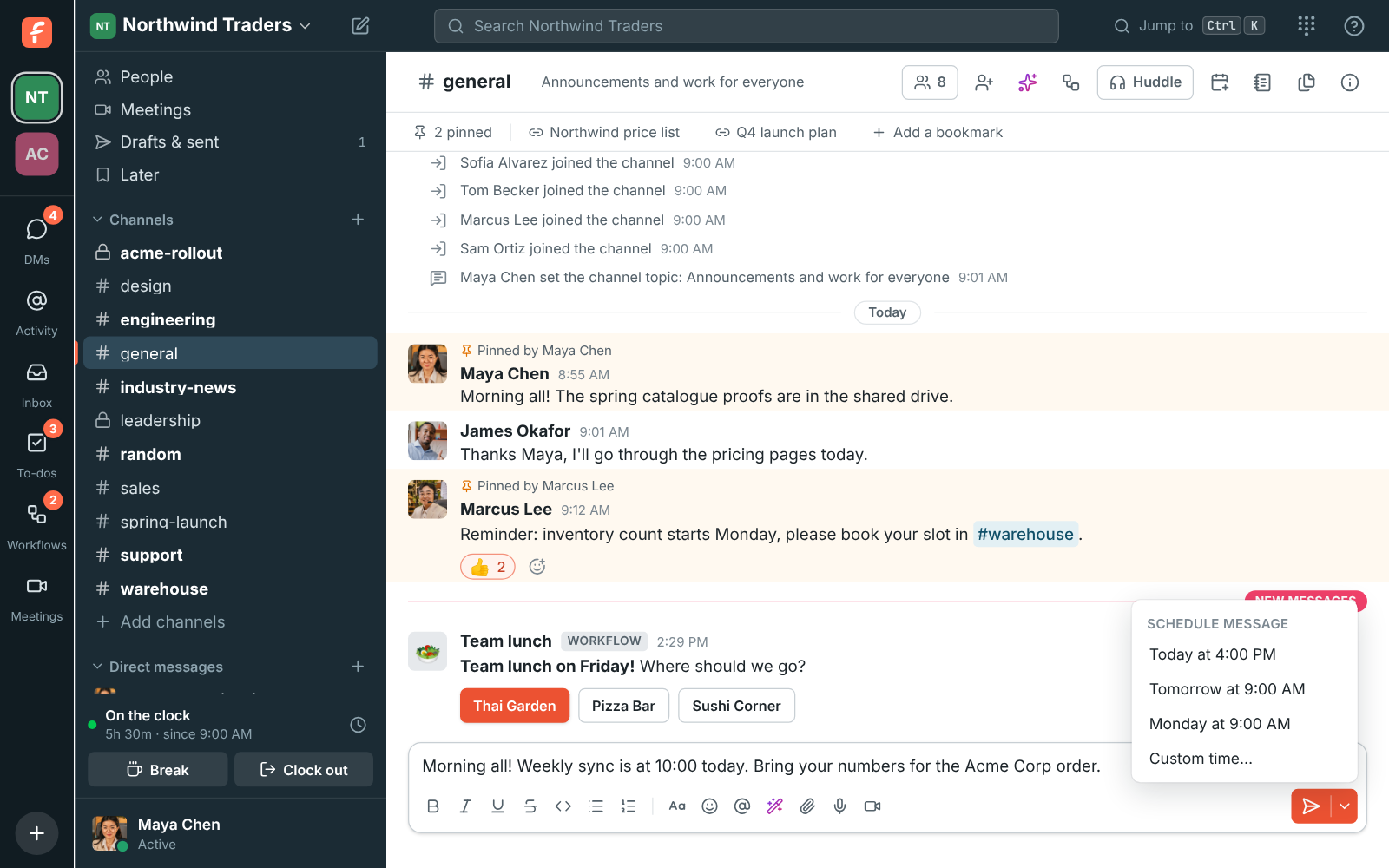
The arrow next to Send open, offering Today at 4:00 PM, Tomorrow at 9:00 AM, Monday at 9:00 AM and Custom time

Every scheduled message on one page

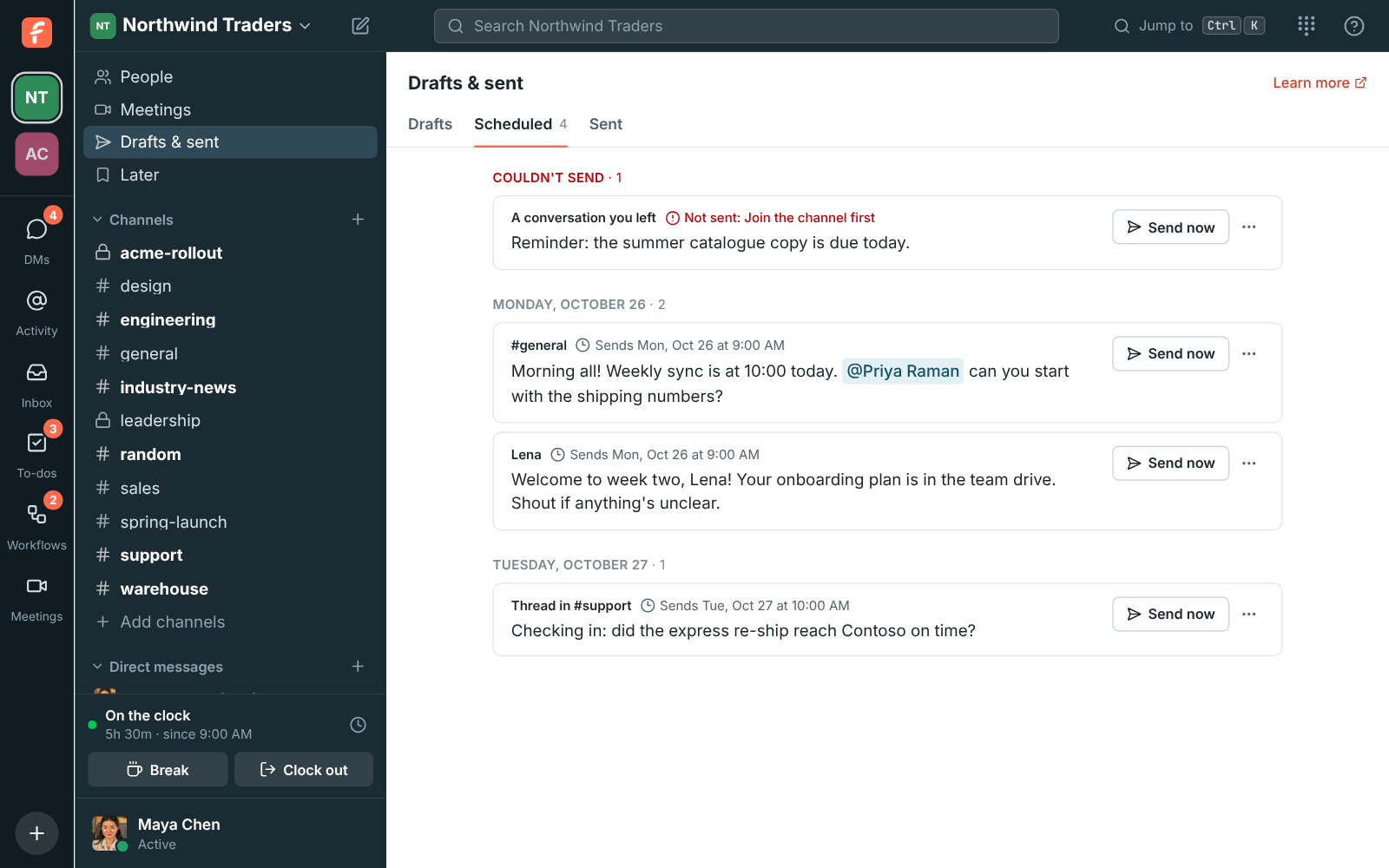
Open Drafts & sent and its Scheduled tab shows every message waiting to go out, soonest first. Send one now, reschedule it, edit the words, open its conversation or delete it so it never goes out. The message is sent by Freesbe at its time, so your computer can be off. It appears as if you had just sent it, and people are notified as usual.

  • A message that could not be sent, say because the channel was archived, stays under Couldn't send with the reason
  • Up to 100 messages scheduled in a workspace at a time
The Scheduled messages page: one that couldn't be sent at the top, then messages for Monday and Tuesday

See it on your own team's data.

Start free with up to 10 people and try it today, or book a 20-minute demo with the people who make Freesbe.

Drafts that follow you

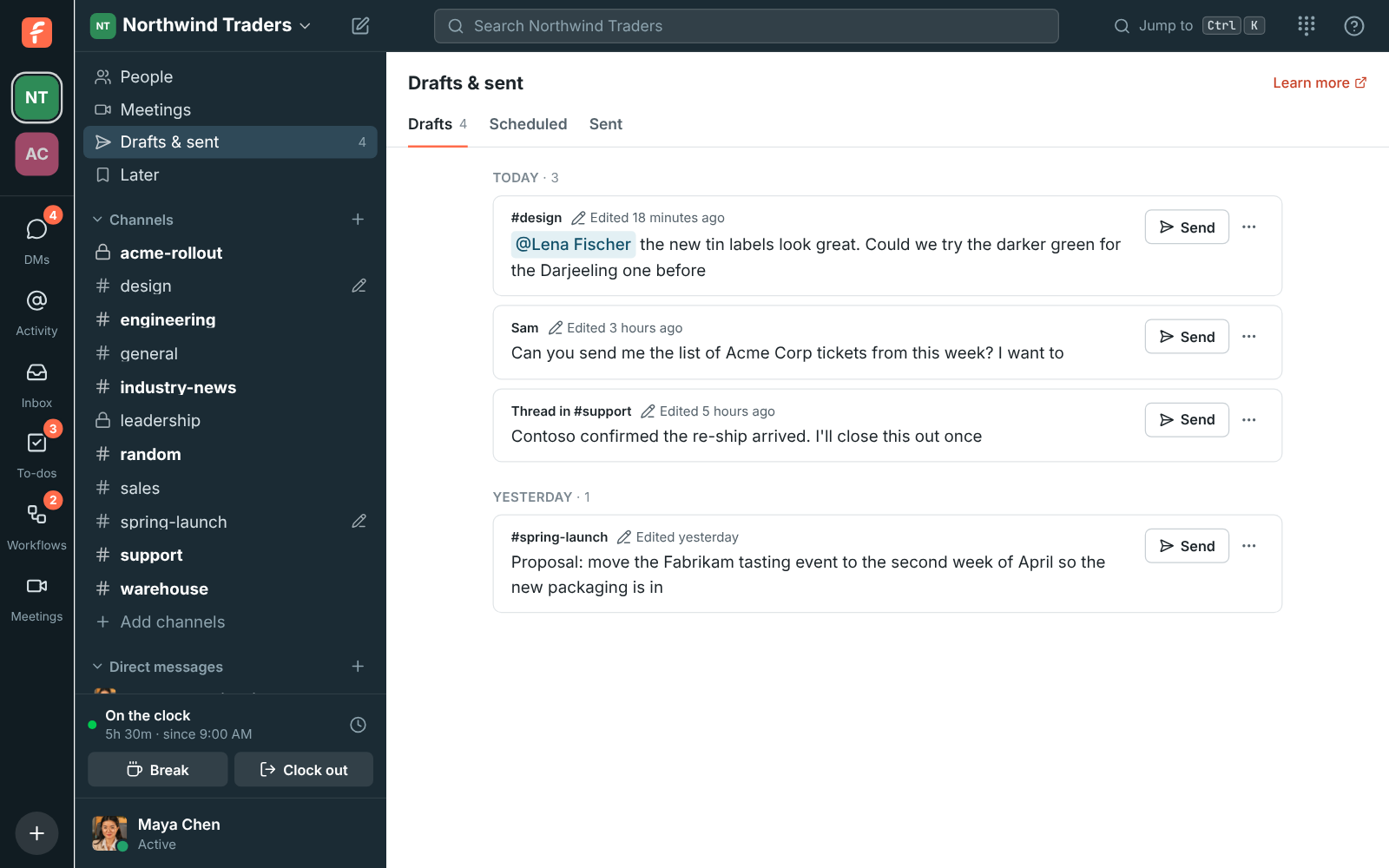
Anything you type and do not send stays as a draft for that conversation or thread. Switch away, close the tab or quit the app, and it is waiting when you come back. Drafts are kept for your account, not the device, so a message you start on your computer is there on your phone. Conversations with a draft show a pencil in the sidebar, and the Drafts tab lists them all with Send, Edit, Schedule for later and Delete.

The Drafts page: drafts for #design, a DM with Sam, a thread in #support and #spring-launch, each with Send and a menu

Find what you sent

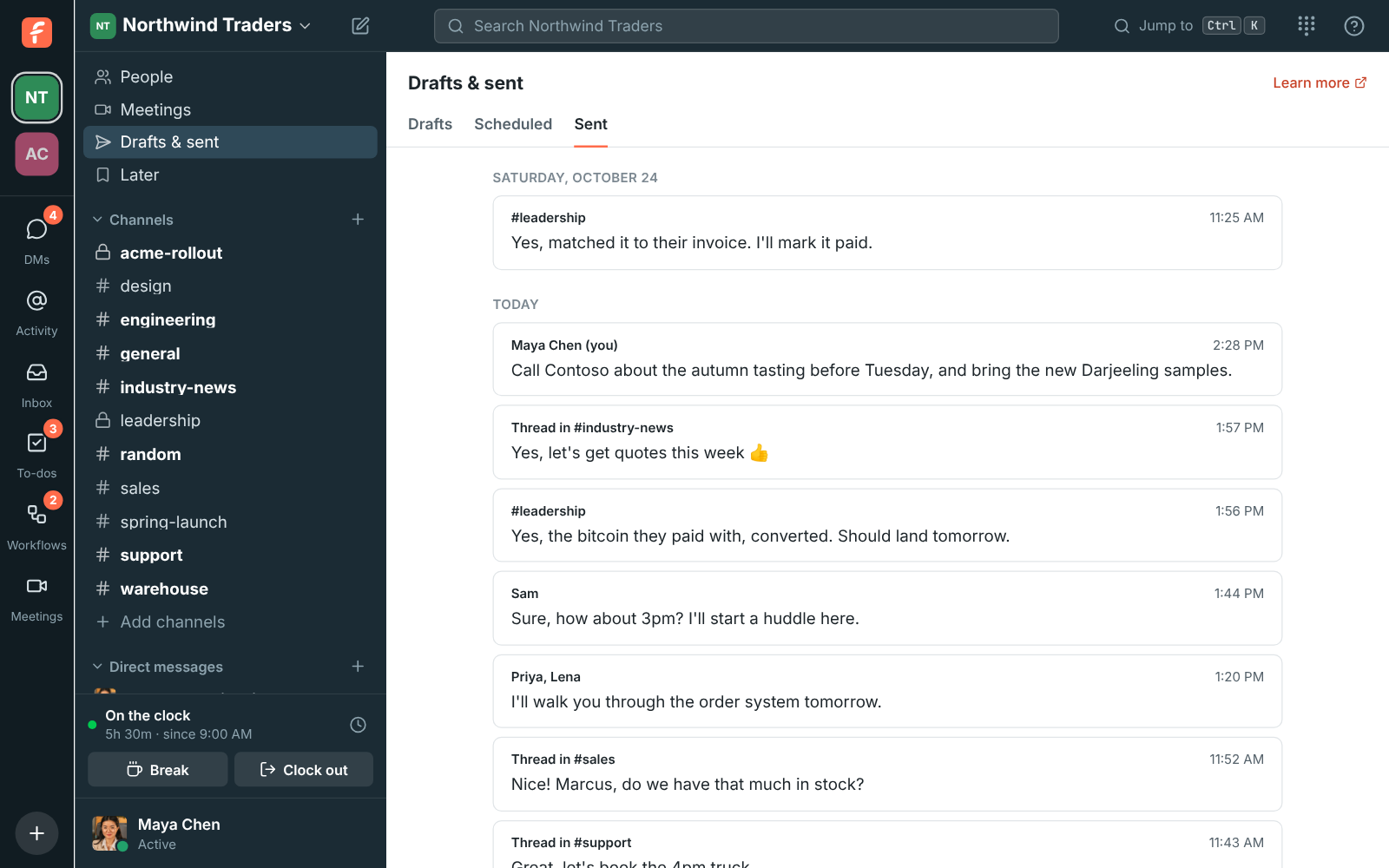
The Sent tab of Drafts & sent lists your own messages and replies, newest first, grouped by day. Click one to jump to it in its conversation or thread, and Show older goes further back. It only shows conversations you are still in, and deleted messages drop off it. On the phone, the same three tabs are under You, with press and hold on Send to schedule.

Drafts & sent on the Sent tab: today's messages and replies in a DM with Sam, threads in #sales and #support, and #spring-launch

Plans and pricing

Scheduled messages and drafts is included in every plan, including Free.

  • FreeUp to 10 people
  • BusinessUp to 500 people
  • CorporateUp to 2,500 people
  • EnterpriseOver 2,500 people

Questions

Does my computer need to be on when the message goes out?
No. Freesbe sends it at the time you picked. It appears as if you had just sent it, and people are notified as usual.
How far ahead can I schedule?
Up to 120 days ahead, and up to 100 messages scheduled in a workspace at a time.
Can I change a scheduled message?
Yes. From the Scheduled tab you can send it now, reschedule it, edit the words or delete it. On the phone, Edit opens the words in place and it still goes out at the time you picked.
Which plan includes this?
Every plan, including Free.

Try all of it free with up to 10 people.

No card, no time limit. Invite your team and see what sticks.