Freesbe
Business and up

Every call, written up before you sit down.

Record a huddle or a meeting, or transcribe a huddle without a video, and a minute or two after it ends Freesbe posts the notes: a summary, the decisions and the action items with who they're for, plus a transcript of who said what. Click a line to hear it, and share it with people who weren't there.

  • Stop taking minutes: the summary, decisions and action items arrive in the thread by themselves.
  • Find the moment: click a line or a word in the transcript and the recording plays from there.
  • Keep what you recorded even if the app crashes: uploads go up every few seconds.
  • Send customers the notes after the call, by a private link that expires when you say.
  • Get the notes in the language the call was held in.

For Teams who hold customer calls and stand-ups and want the follow-ups to stick.

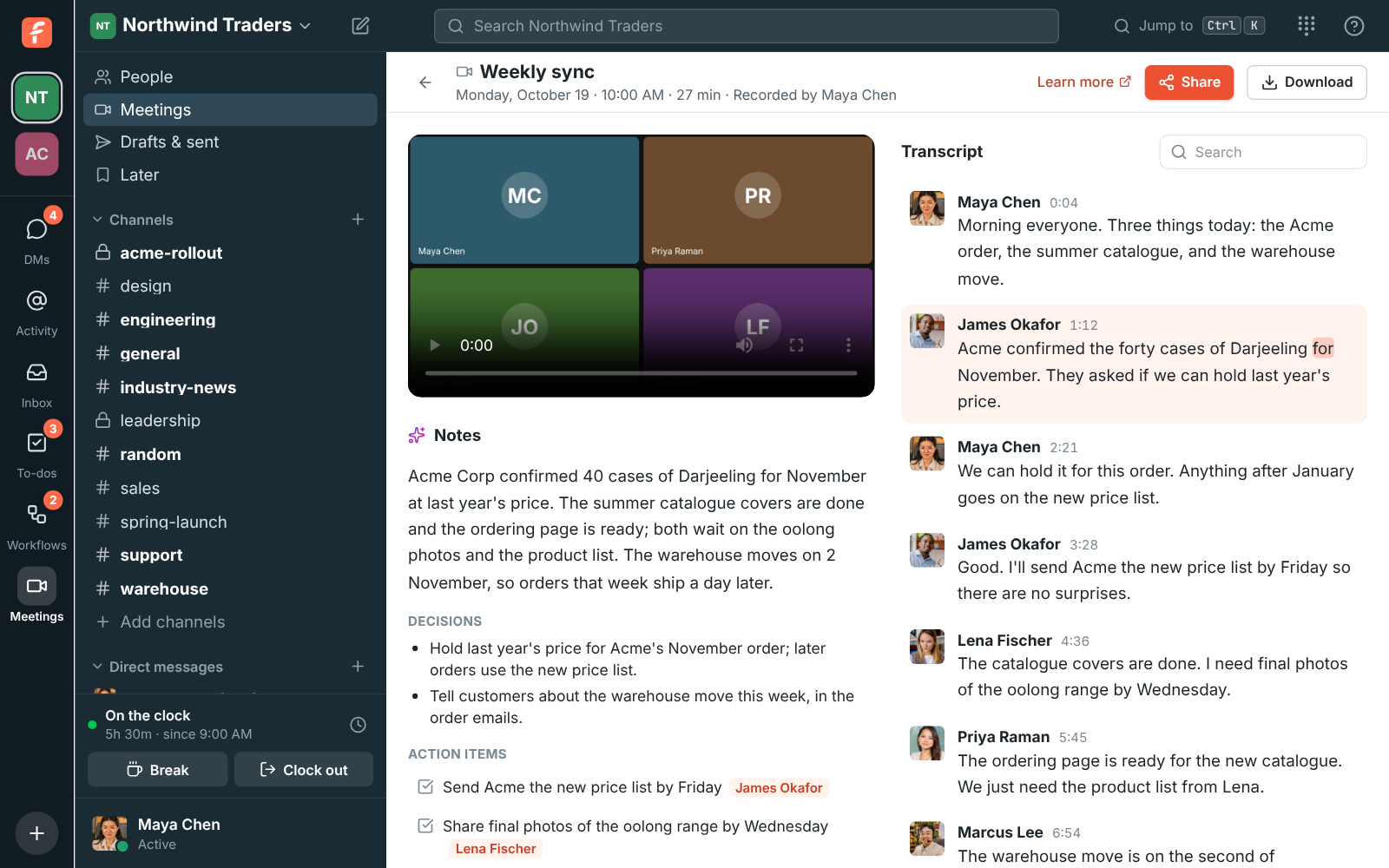
The weekly sync's recording: the video, notes with a summary, decisions and action items, and the transcript with each person's name and time

Record, or just transcribe

Click Record in a huddle or meeting and everyone hears a tone and sees a red REC badge. When it stops, a huddle's recording is posted in the channel and a meeting's is kept under Meetings, Recordings, with notes following in the thread a minute or two later. Want the notes without a video? Click Transcribe in a huddle: only the audio is captured, nothing is posted as a video. Admins can have every huddle transcribed without anyone asking.

  • Uploaded every few seconds, so a crash keeps what was already recorded
  • Stops when the recorder leaves, when the call ends, and after 4 hours
  • Admins choose who can start and stop: everyone, the recorder and hosts, or hosts only
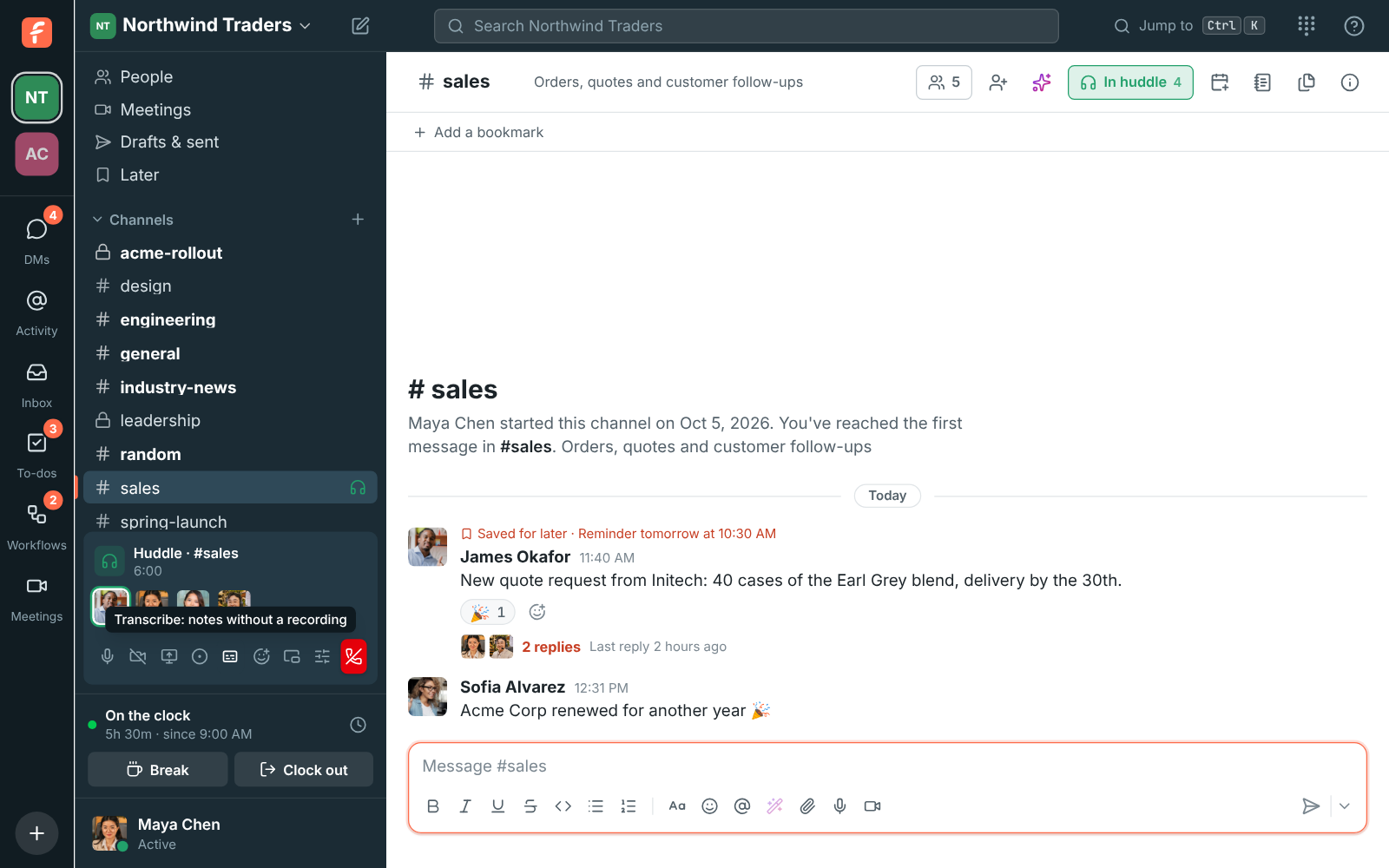
The huddle controls in #sales, with the Transcribe button's tooltip: notes without a recording

Notes you can act on

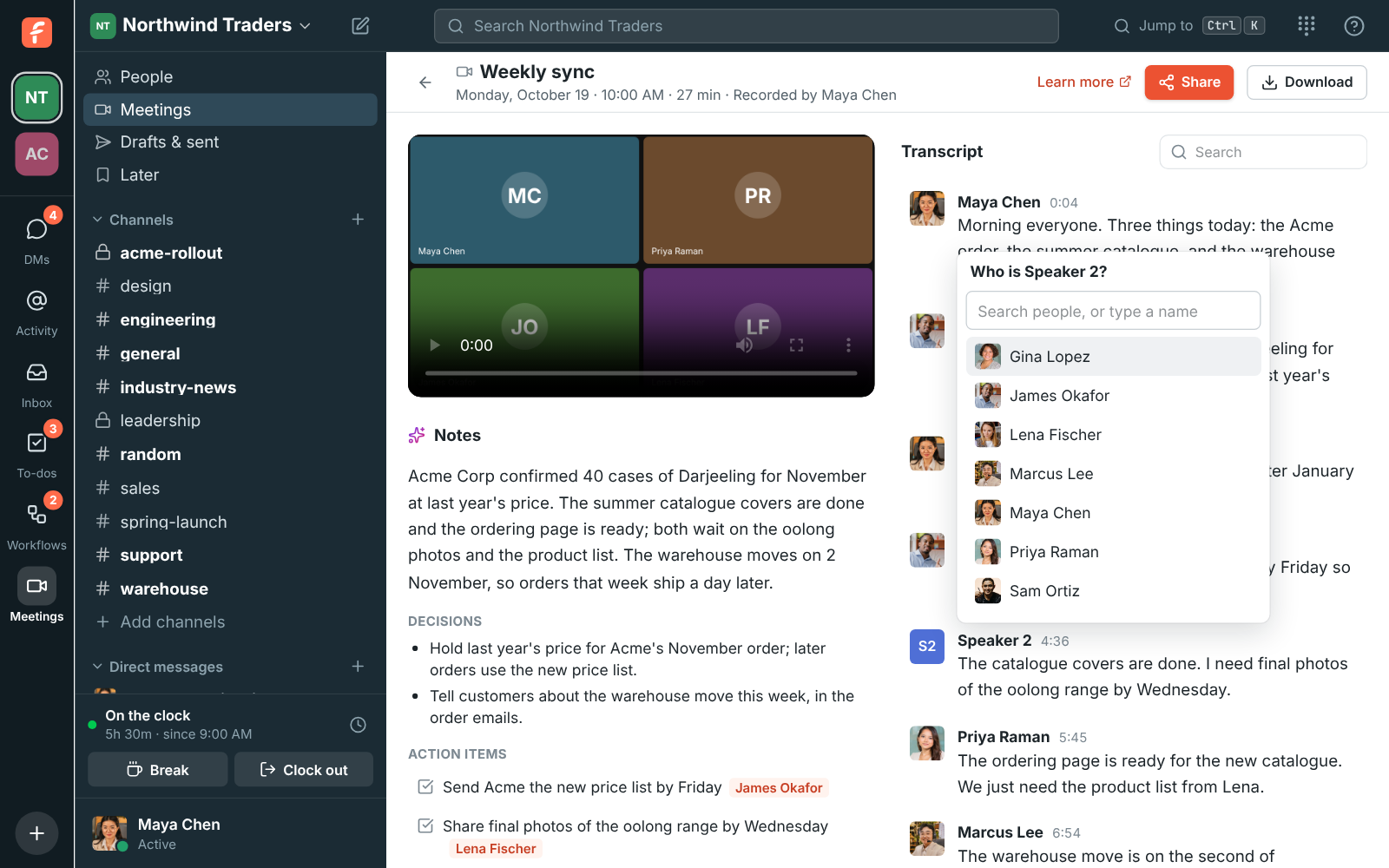
The notes hold a short summary, the decisions, and the action items with who they're for; click Add to my to-dos next to one. The transcript gives who said what, with times: click a line to play from there, or a word to start from that word, and the line being spoken is highlighted as it plays. Search it, or download the notes and transcript as a text file. A voice Freesbe couldn't match is Speaker 1 or 2: click the name to say who it is.

The Weekly sync recording with Who is Speaker 2? open over the transcript, listing people from the workspace

See it on your own team's data.

Start free with up to 10 people and try it today, or book a 20-minute demo with the people who make Freesbe.

Share it with the people who missed it

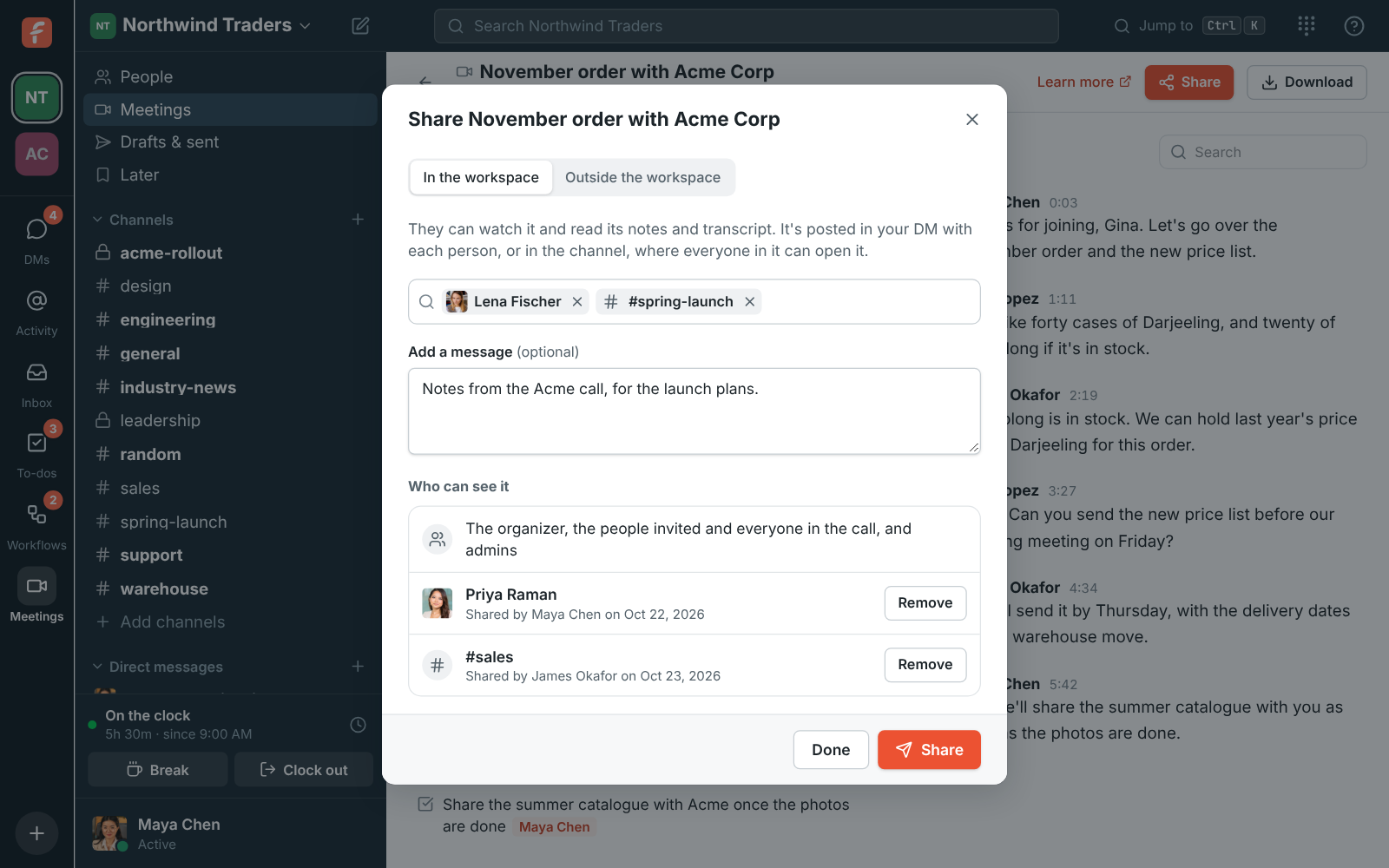
Click Share on a recording and pick teammates or a channel. Each person gets it in your DM with them, and a channel gets a card with the title, the length and the start of the summary, with Watch and Notes and transcript buttons. Who can see it lists everyone who has the recording and who shared it, and a share can be removed. Anyone in the workspace who can see a recording can share it; guests can't.

The Share dialog for the November order with Acme Corp: Lena Fischer and #spring-launch picked, and under Who can see it, the people in the meeting

Notes for your guests, too

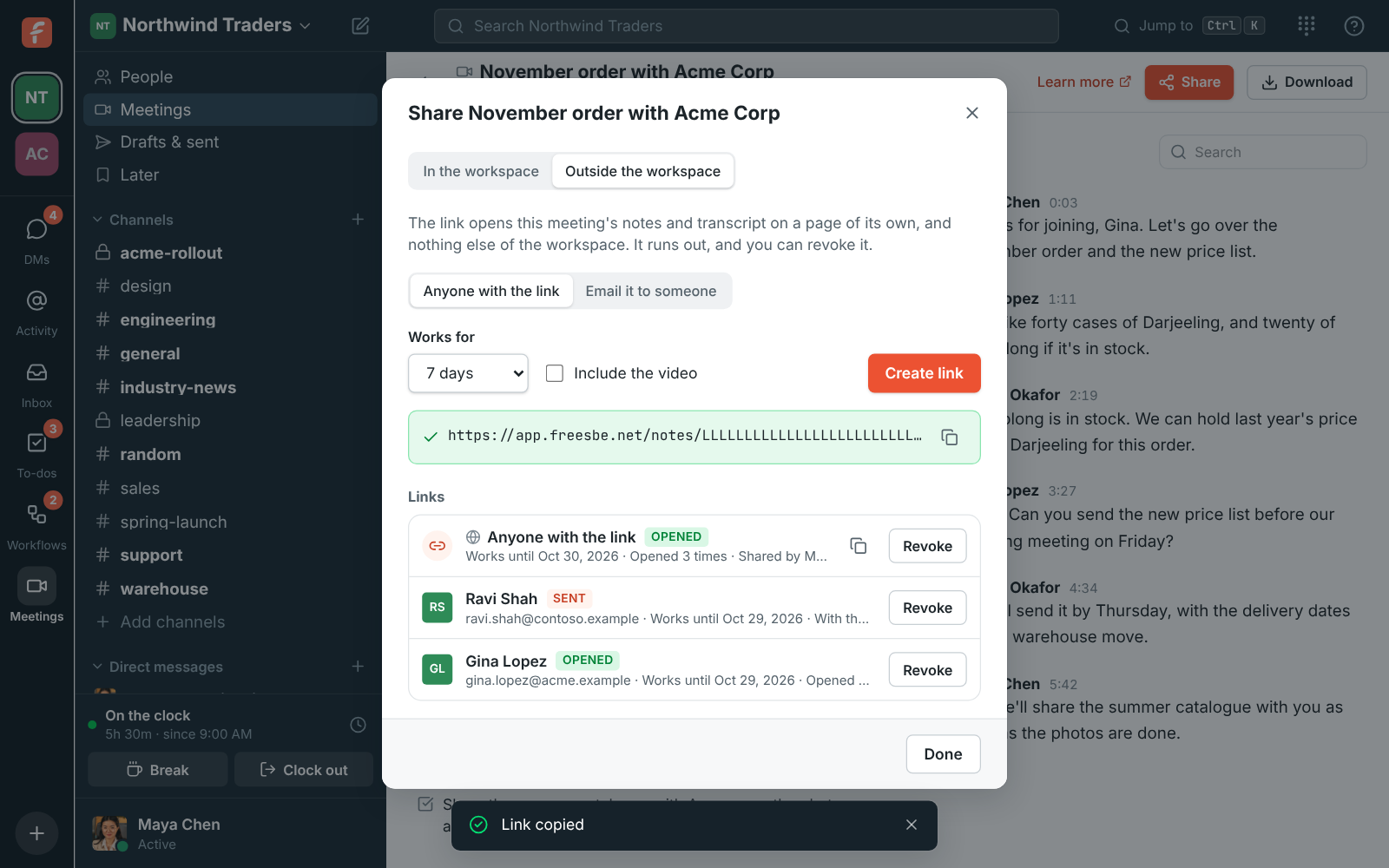
When an admin turns on sharing outside the workspace, a meeting's organizer, its recorder and admins can make a link for anyone or email it to an address, choose how many days it works, and include the video or only the notes. The page shows that meeting alone: no channels, no people besides the speakers' names. Guests who joined with their own invite link can get the notes by email on their own. Every outside link is listed with how often it was opened, and can be revoked at once.

The Outside the workspace tab: Anyone with the link, Works for 7 days and Include the video, a link just made, and the Links list with Gina Lopez's and Ravi Shah's emailed links

Plans and pricing

Recordings, transcripts and AI notes is included in Business, Corporate and Enterprise.

  • BusinessUp to 500 people
  • CorporateUp to 2,500 people
  • EnterpriseOver 2,500 people

Questions

Which plan includes this?
Recordings come with Business, Corporate and Enterprise. Transcripts and notes have a monthly allowance: 3 transcripts on Free, 10 hours per person shared across the workspace on Business, and no set limit on Corporate and Enterprise. Recordings are still saved once it's used up; click Try again once there's room.
Who can start or stop a recording?
Anyone from the workspace in the call can start one unless an admin allows only hosts and co-hosts. By default the recorder, the hosts, co-hosts, owners and admins can stop it. Guests never start or stop recordings.
Where does the audio go?
The call's audio is sent to xAI, the speech-to-text provider, to be transcribed, and the transcript to its model for the notes. The audio is kept for 30 days so a transcript can be tried again, then deleted; the transcript and notes are deleted with the recording.
Does it work in other languages?
Transcripts work in many languages, and the notes are written in the language of the call. Hebrew and Arabic lines read right to left, and a call that mixes languages shows each line its own way.
Can admins turn it off?
Yes. Admins can turn transcripts and notes off, turn recording off altogether, limit who can record, and have recordings deleted after 30, 90 or 365 days.

Try all of it free with up to 10 people.

No card, no time limit. Invite your team and see what sticks.