Freesbe
Business and up

Clock in from the chat. Payroll gets a CSV.

The punch clock is a time clock inside Freesbe. People clock in, take breaks and clock out from a card in the sidebar or the tray menu. Each person sees their own week and can fix a mistake with a reason. Admins see who is on the clock now, review hours and overtime, and download a CSV for payroll.

  • Nobody installs a second app to track time: the clock sits above their name in the sidebar.
  • A forgotten clock-out is fixed by the person, with a reason kept in the entry's history.
  • Overtime is counted for you, after the daily and weekly limits you set.
  • Payroll gets a CSV with one row per shift or per day, for any dates you pick.
  • It records only clock-ins, breaks and clock-outs, never activity, apps or screens.

For Shops, warehouses, clinics and any team that pays by the hour.

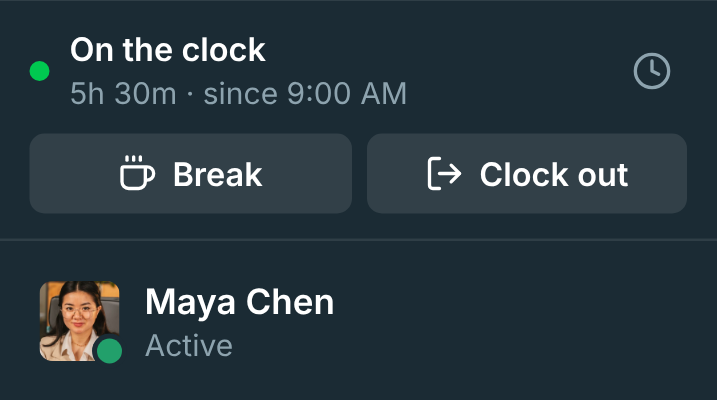
The clock card in the sidebar, showing On the clock with Break and Clock out buttons

Three buttons, where people already are

When the punch clock covers you, a clock card sits in the sidebar above your name: Clock in when you start, Break when you step away and Back to work when you return, Clock out when you're done. The desktop app has the same buttons in its tray menu, and the tray icon's tooltip says whether you're on the clock. Each clock-in can also start a workflow, such as a message to the shift channel.
The clock card in the sidebar, showing On the clock with Break and Clock out buttons

Your week, and a way to fix it

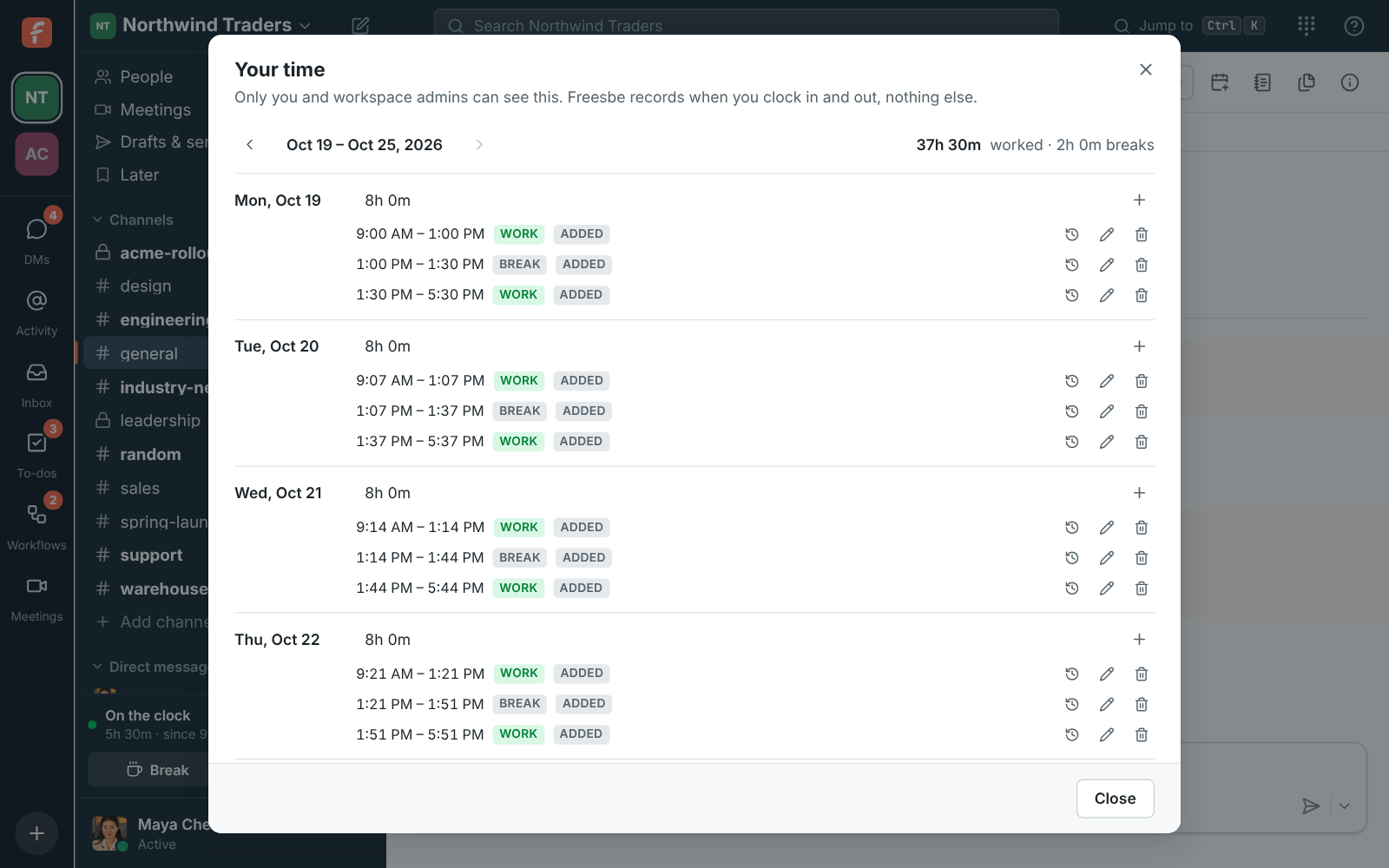
The clock icon opens Your time: the week day by day, with daily totals, and arrows to move between weeks. Only you and workspace admins can see it. Forgot to clock out or clocked in twice? Add time for a shift or break you missed, change an entry's start, end or note, or delete one. Every change asks why, keeps who changed what in the entry's history, and marks the entry Edited so whoever reviews the timesheet can see it.

Your time: a week of work and break entries with daily totals

See it on your own team's data.

Start free with up to 10 people and try it today, or book a 20-minute demo with the people who make Freesbe.

Who is on the clock right now

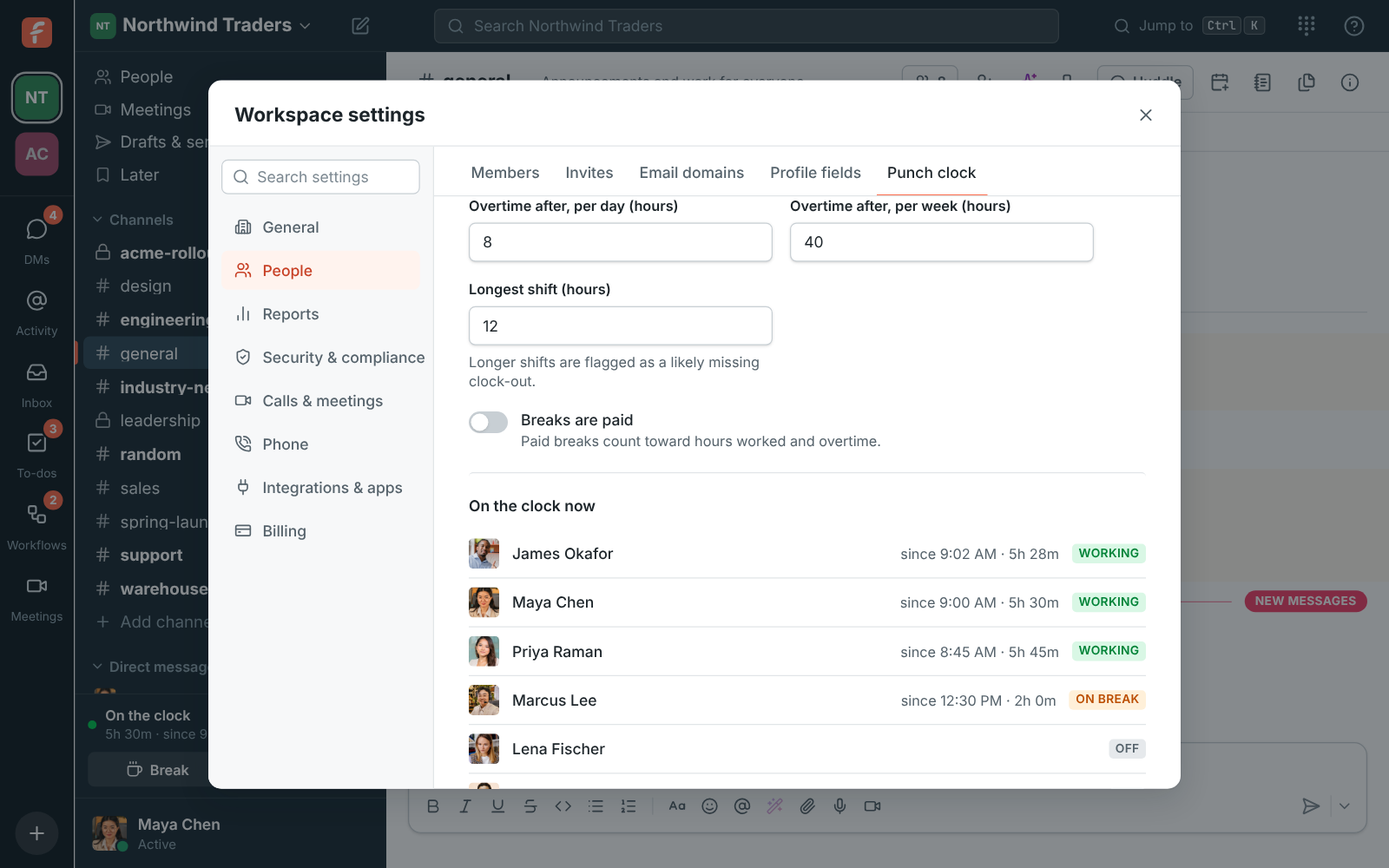
The Punch clock settings page shows who is working or on break at this moment, and a weekly table of everyone's hours with On now, Overtime, Check and Edited flags. A shift longer than the limit you set is flagged as a likely missing clock-out. Click a person to see and fix their week; an admin's change needs a reason too and stays in the history. In the Admin Center, search On the clock now by name or show only the people working, on break or off.

Who is on the clock now, in the admin Punch clock settings

Hours and overtime, ready for payroll

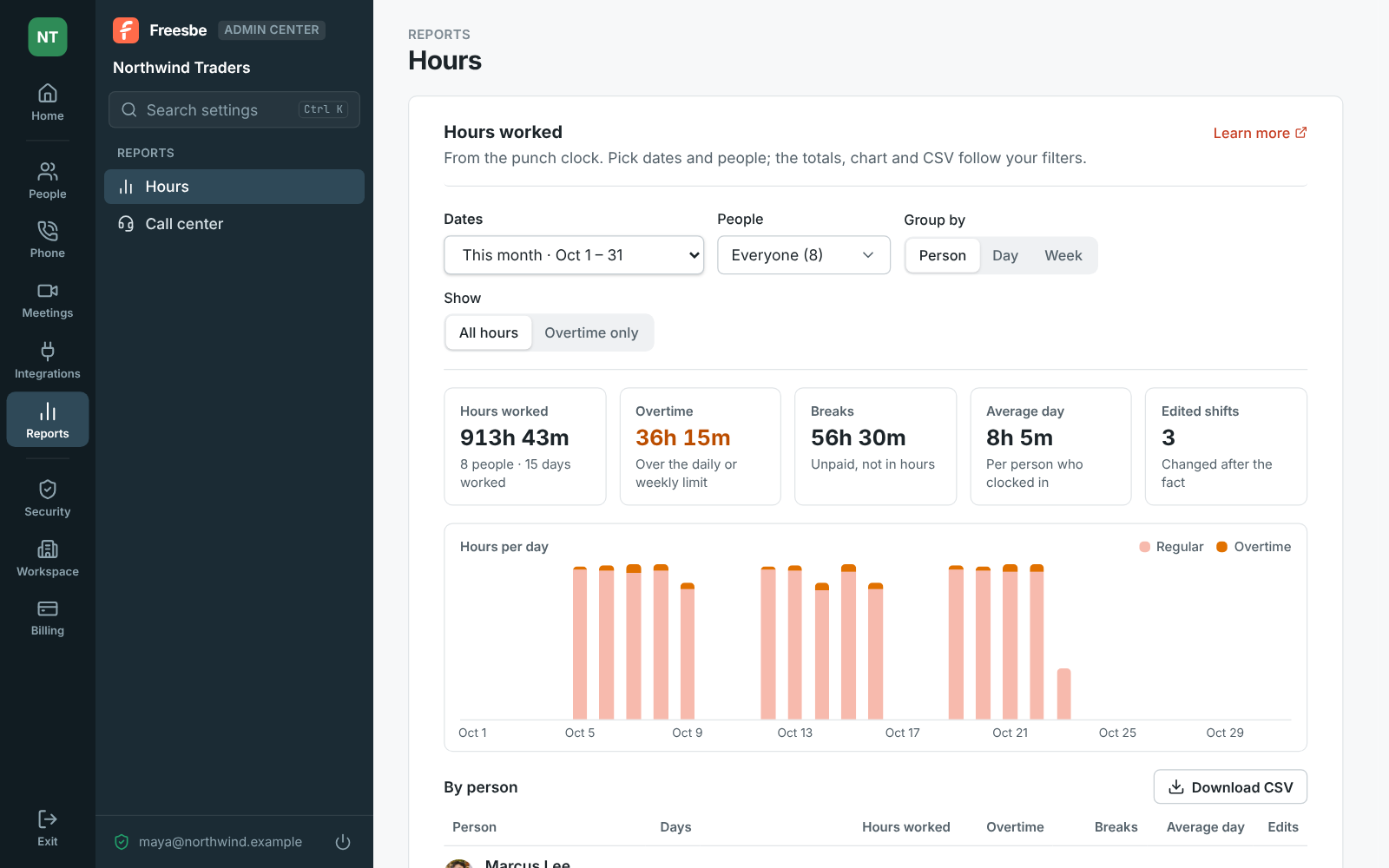
Set the day the week starts, whether days are cut in each person's time zone or one for everyone, when overtime starts per day and per week, and whether breaks are paid. Then Download CSV for any date range, one row per shift or per day. For totals over any dates, filtered by people and grouped by person, day or week, open Reports in the Admin Center; its CSV uses decimal hours, so 7.50 is seven and a half.

  • Weeks start on Monday, breaks are unpaid and overtime starts after 8 hours a day or 40 a week unless you change it
  • A shift that runs past midnight counts toward the day it started
Reports, Hours: filters, totals for the month and hours per day

Plans and pricing

Punch clock and timesheets is included in Business, Corporate and Enterprise.

  • BusinessUp to 500 people
  • CorporateUp to 2,500 people
  • EnterpriseOver 2,500 people

Questions

Which plan includes this?
The punch clock is a plan feature; the availability line on this page comes from the current pricing catalog, and the pricing page has the full comparison.
Does it track what people do on their computer?
No. It records only when people clock in, start and end breaks, and clock out, plus any note they type. It never tracks activity, apps or screens.
Who sees my timesheet?
Only you and workspace admins. An admin turns the punch clock on and picks who it covers, everyone or only the people they tick; only the people covered see the clock.
How is overtime counted?
Each day's time up to the daily limit is regular time, until the week's regular time reaches the weekly limit; everything past either limit is overtime, counted once. With the default 8 hours a day and 40 a week, a 10-hour Monday gives 2 hours of overtime.
Can it approve timesheets or clock people out automatically?
Not yet. Approvals, reminders and automatic clock-out aren't available today. People and admins fix entries by hand, with a reason kept in the history.

Try all of it free with up to 10 people.

No card, no time limit. Invite your team and see what sticks.