Freesbe
All plans

A profile photo like you, in better light.

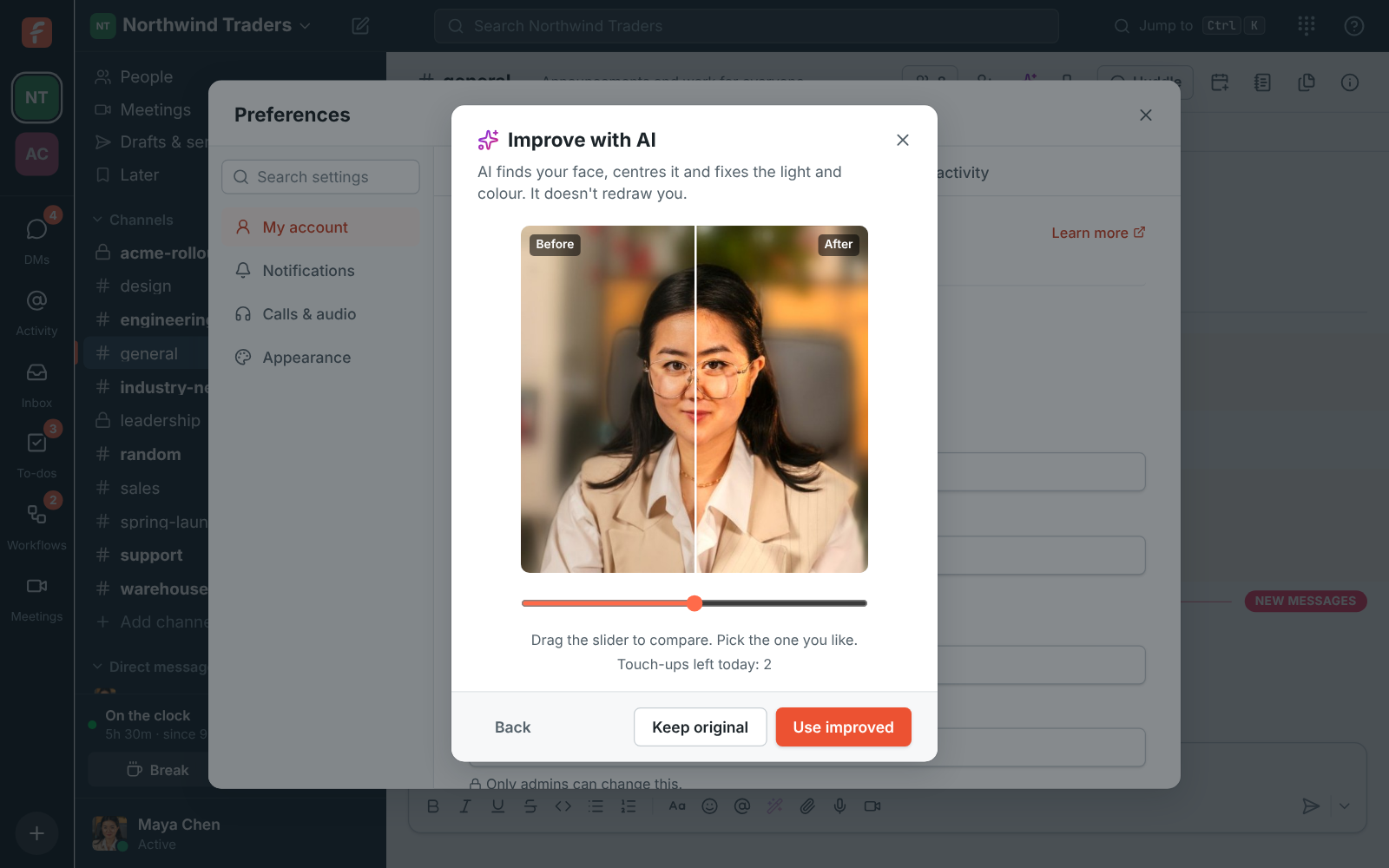
Take your profile picture with your computer's camera or your phone, no app needed, then click Improve with AI. It finds your face, centres it, fixes a dark, backlit or too-blue photo and can soften a busy background a little. It doesn't redraw your face or invent anything. Drag the slider to compare, then keep the one you like.

  • A photo taken at your desk under bad light comes out like one from a photographer.
  • You still look like you: the changes are made to your own photo, nothing is redrawn.
  • Take the picture right there, with your webcam or by pointing your phone at a code.
  • Nothing changes on your profile until you choose Use improved.

For Everyone whose face shows up next to their messages, and the admin who wants a directory that looks the part.

Improve with AI: before and after side by side with a slider, Use improved and Keep original

Before and after, your call

In the crop step, click Improve with AI. It finds your face, centres it, fixes the light and colour, a dark or backlit face, a washed out or too-blue photo, and can soften a busy background a little. Drag the slider to compare before and after, then click Use improved or Keep original. Back returns to cropping. It only works on a photo of a person with their face showing; a logo, a drawing or a pet is turned away and you can still keep it as it is.
Improve with AI: before and after with a slider, Use improved and Keep original

Take it with your webcam

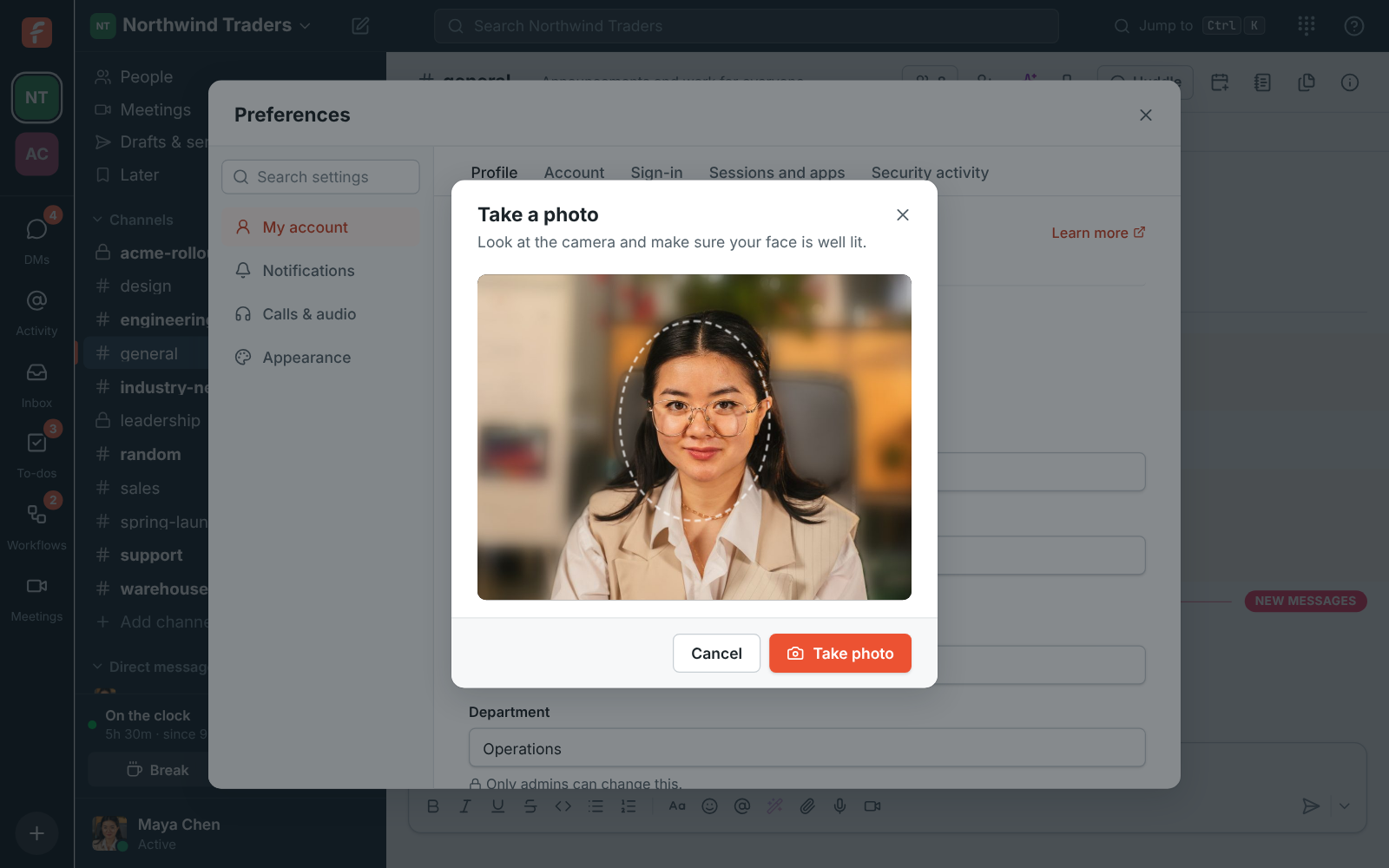
Take photo opens your computer's camera. Line your face up with the oval, click Take photo, then Use photo or Retake; with more than one camera, pick it at the bottom left. If you joined with Google or Microsoft, Import from Google or Import from Microsoft brings in that account's photo instead, ready to crop. Whichever way you pick a picture, you crop it next and click Save.

Take a photo: the camera preview with an oval to line your face up, and Take photo

See it on your own team's data.

Start free with up to 10 people and try it today, or book a 20-minute demo with the people who make Freesbe.

Or with your phone, no app needed

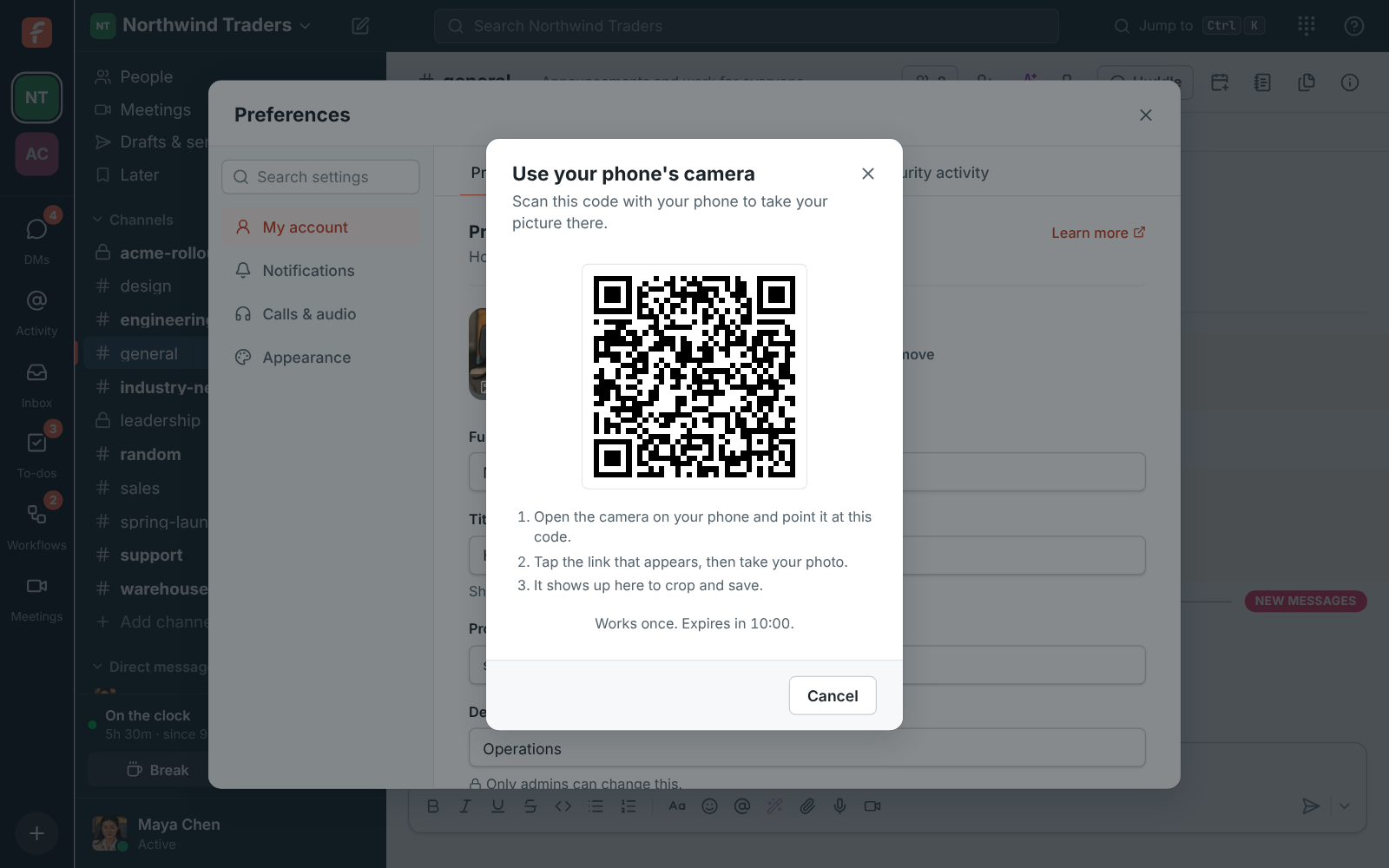
Use phone shows a QR code. Point your phone's camera at it and tap the link: a page opens in your phone's browser, with no app or sign-in needed. Tap Take a photo or Choose from your photos, then Send to computer, and the photo shows up on your computer ready to crop. The code works once, for 10 minutes, and stops working when you close the dialog.

Use your phone's camera: a QR code with three steps and the time left

Where it shows

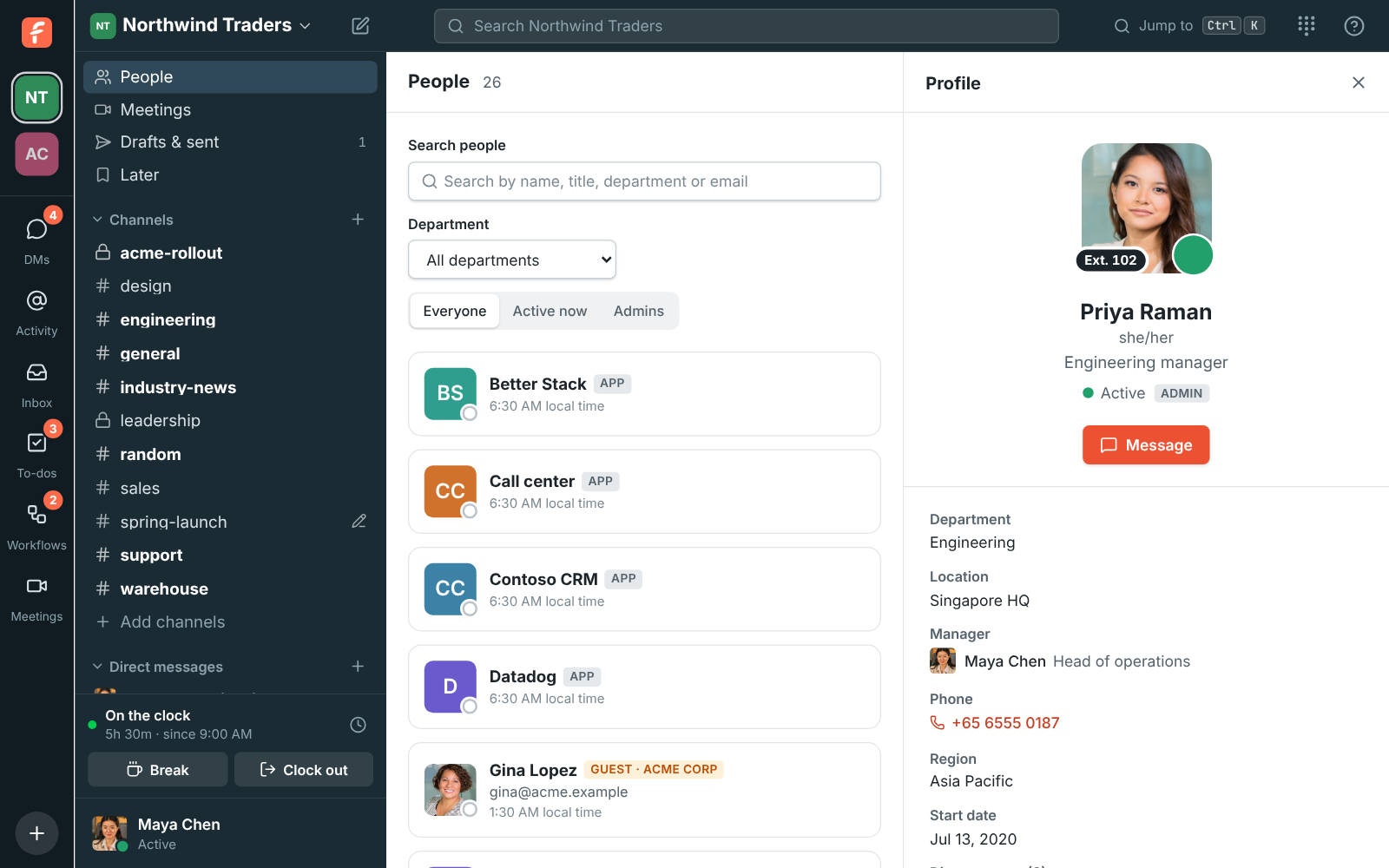
Your picture sits next to every message you send, on your profile with your work details, in the People directory and on your booking page, where you can show it or your initials. A photo in good light makes all of them easier to read. Each person can use the touch-up a few times a day, it counts toward the workspace's monthly AI allowance, and guests don't have it.

Priya Raman's profile with her picture, title, department, location, manager and direct reports

Plans and pricing

Profile photos, touched up is included in every plan, including Free. Every plan has a monthly allowance of AI requests that grows with the plan; admins can turn any AI feature off.

  • FreeUp to 10 people
  • BusinessUp to 500 people
  • CorporateUp to 2,500 people
  • EnterpriseOver 2,500 people

Questions

Which plan includes this?
Every plan, including Free. Each summary, translation, rewrite or answer counts as one AI request from the workspace's monthly allowance, which grows with the plan; /pricing/limits/ lists them. Guests can't use AI features.
What can the AI see?
Only the photo you're setting. It's sent to the AI provider so it can look at it; Freesbe doesn't keep that copy, and the provider doesn't use it to train its models.
Will it change how I look?
No. It centres your face, fixes the light and colour and can soften the background a little, with the changes made to your own photo. It doesn't redraw your face or invent anything, and you compare before and after before choosing.
How often can I use it?
A few times a day per person, with a daily limit for the workspace that grows with the plan. A photo that was turned away counts too. Like other AI features, it's there when AI is on for your workspace.

Try all of it free with up to 10 people.

No card, no time limit. Invite your team and see what sticks.