
Take your work calls on your phone
With the phone system from Freesbe, your work number follows you: a call rings your phone and your computer together, and you answer on either. This gets the mobile app ready for calls, keeps it ringing when you’re away from your desk, and sets which device rings first. Anyone with a phone line does it; nothing for an admin to set up.
1. Open the Calls tab
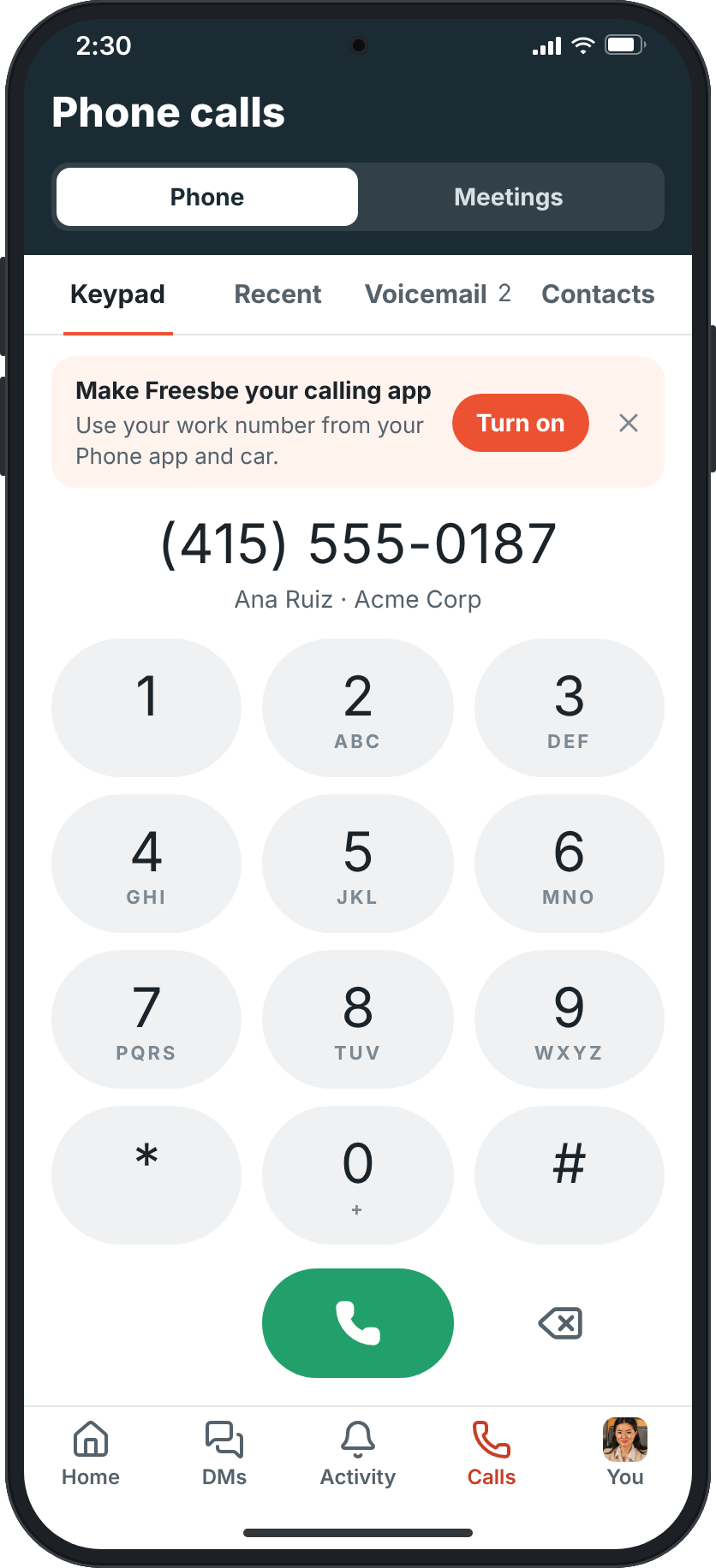
Section titled “1. Open the Calls tab”Install the mobile app and sign in. When your workspace has a phone system from Freesbe, the Meetings tab becomes Calls, titled Phone calls, with Phone and Meetings at its top. Your phone signs in as a phone of its own. The tab has four parts:
- Keypad: type a number or a colleague’s extension and tap the green button. Under the number it says who it is, or whether the phone is Online or Offline.
- Recent: your calls from the last 30 days, from every device. Missed calls are red; tap one to call back.
- Voicemail: your messages, with what the caller said written out and a player.
- Contacts: colleagues with their extensions, and the contacts saved on your phone once you tap Use my contacts. Your contacts stay on your phone.
2. Keep it ringing in the background
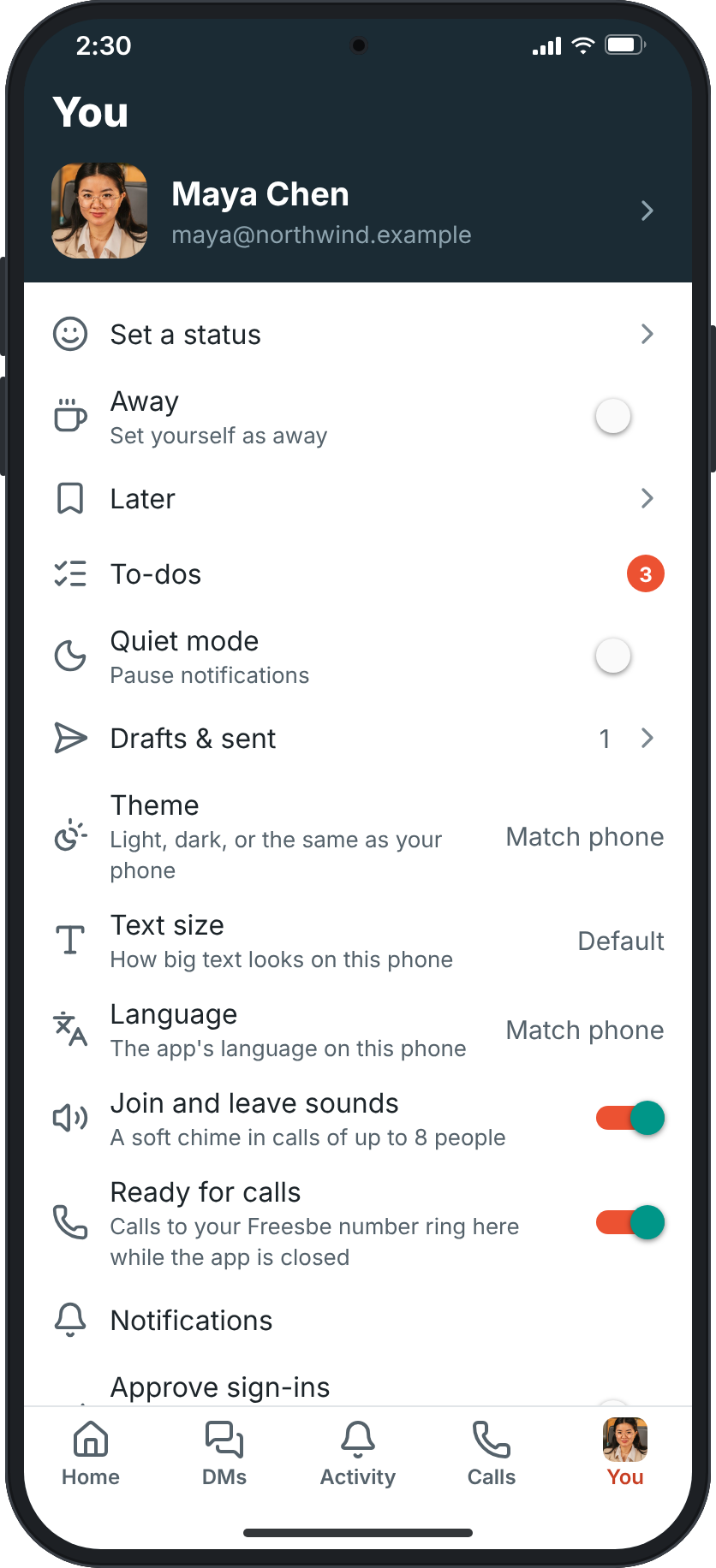
Section titled “2. Keep it ringing in the background”Open the You tab (tap your profile picture at the bottom) and turn on Ready for calls. It keeps Freesbe signed in to the phone while the app is in the background, so calls ring even when you aren’t using it. Android shows a quiet Ready for calls notification while it’s on. Switch it off and your phone only rings while Freesbe is open; your computer still rings.
On iPhone, calls ring while Freesbe is open. Ringing when it’s closed, on Android and iPhone, is coming next.
3. On Android, make Freesbe a calling account
Section titled “3. On Android, make Freesbe a calling account”Freesbe can be one of your phone’s calling accounts, like a second SIM. Then your phone’s own Phone app and Contacts can call through Freesbe (it asks Call with which account), incoming calls show on the lock screen like any call, and Freesbe calls go in your phone’s call history. Freesbe doesn’t even need to be open: it starts in the background, connects and places the call.
Tap Turn on on the card at the top of the keypad, or You → Calling account, allow Freesbe to make and manage phone calls, then switch Freesbe on under Calling accounts in your phone’s settings. Back in Freesbe, the card goes away and You → Calling account says On.
4. Answer and pass calls on
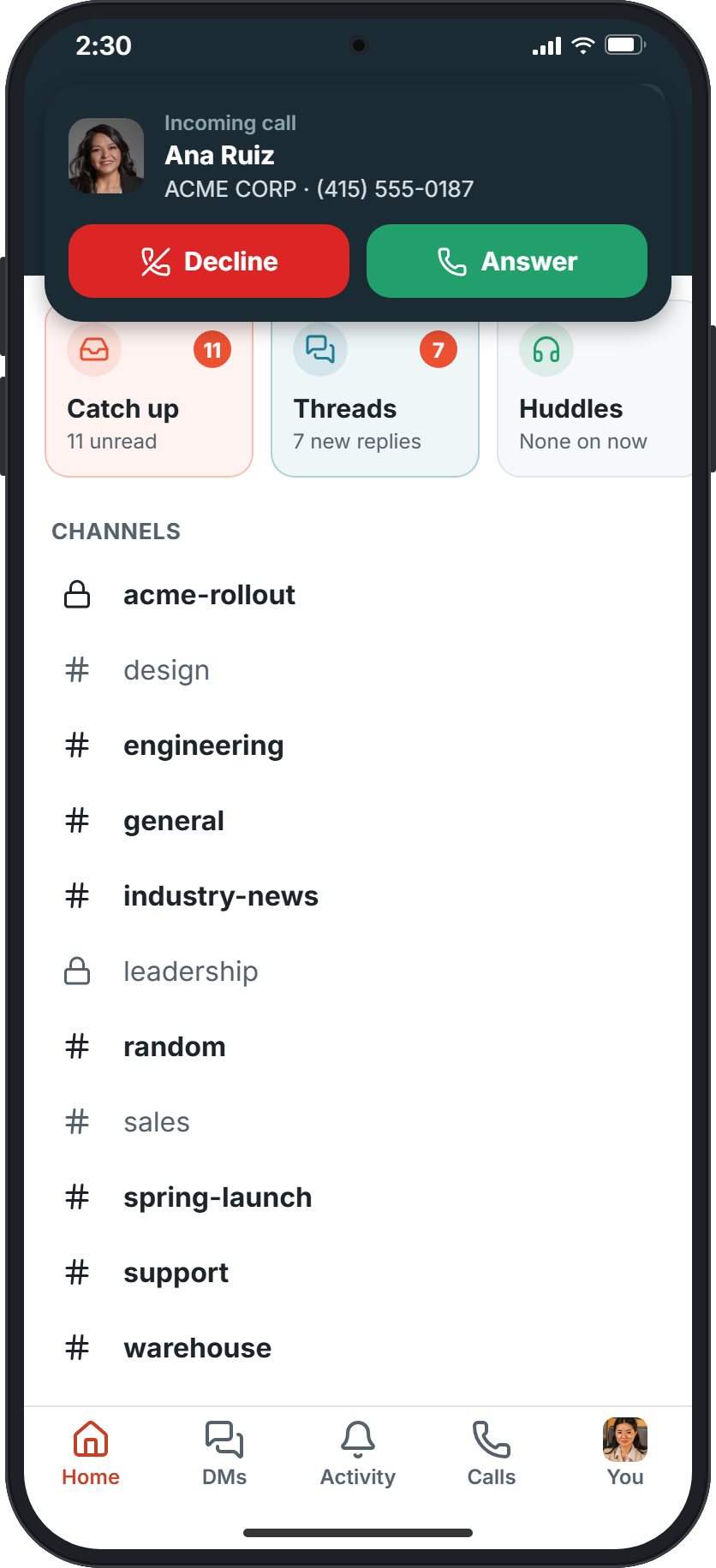
Section titled “4. Answer and pass calls on”A call rings with your ringtone and shows who’s calling: the name and picture from your contacts, or the caller ID. In the app, a card at the top has Decline and Answer; with the phone locked, the call fills the screen.
During the call you have Mute, Keypad (for menus that say “press 1”), the speaker or a Bluetooth headset, Hold, Transfer and the red button to hang up. Tap the arrow at the top to go back to the app while you talk; a green bar takes you back to the call. Transfer passes the call on: pick a colleague or a contact, or type a number, and you’re off the call.
A call that comes in while you’re already on one isn’t put through. A call you miss gets a notification; tap it to open Recent.
5. Choose which device rings first
Section titled “5. Choose which device rings first”On your computer, open Preferences → Calls & audio → Phone → When a call comes in:
- Ring where I’m working (the default): the device you’re using right now rings first, and the others join after 10 seconds.
- Ring all my devices at once.
- Ring them one after another, in the order and for the time you set, say the computer for 10 seconds, then the phone app.
While I’m in a meeting or huddle keeps the computer quiet so the call rings your phone instead. My devices lists every device your calls ring, with a switch to stop one, such as an old phone; your phone shows up once you’ve opened Freesbe on it. If an admin locked these settings, you see them but can’t change them.
- Phone numbers on someone’s profile call from Freesbe on your phone too, with your work number.
- In a huddle or meeting on your computer and need to leave? The app shows Join here, and the call moves to your phone without a drop for the others.
- If you’re in a call queue, take a break or sign out from the pill in the top bar on your computer and queue calls stop until you’re back. Calls straight to your number keep ringing.
See Phone calls in the mobile app guide and Follow-Me for the details.
Answers come from the Freesbe guides and are written by AI, so check the linked guide before relying on one. Please don't include personal details such as emails or passwords.