
Let people join with their work email
Chasing invite links for every new hire gets old. Verify your company’s email domain once and
anyone who signs up with a confirmed address at it sees your workspace under Join your team and
is in with one click, like Slack’s approved domains. This verifies northwind.example and decides
whether new people walk in or wait for a nod. An owner or admin does it in the Admin Center; on
Corporate and Enterprise a People admin can too.
Before you start
Section titled “Before you start”- Join by email domain works on every plan. People who join take a seat like anyone else, so a workspace without free seats asks an admin to add some first.
- You need to add one TXT record where your domain’s DNS is managed, or ask whoever does.
- Webmail domains like gmail.com, outlook.com or yahoo.com belong to everyone, so they can’t be
added. A subdomain counts on its own: add
eu.northwind.exampletoo if people have addresses there.
1. Add the domain
Section titled “1. Add the domain”- Open the Admin Center, then People → Joining → Email domains.
- Under Add a domain, enter the part after the @, like
northwind.example. - Choose whether people Join as a Member or an Admin. Member, almost always.
- Decide on An admin approves each person. Off, people are in the moment they sign up. On, they ask to join and an admin lets them in. It’s always on for admins: nobody becomes an admin without someone checking.
- Click Add domain.
2. Add the DNS record
Section titled “2. Add the DNS record”Freesbe shows a TXT record and looks up who runs your domain’s DNS, then shows the quickest way:
- One click, when your provider supports Domain Connect: click Add it at your provider, sign in there in the window that opens and approve the record.
- Your provider’s own steps, for Namecheap, Route 53, Microsoft 365, Squarespace and about fifteen others: an Open button goes straight to your domain’s DNS page there, with three steps and the Host and Value to copy.
- The record itself, under Add the record yourself, for any other provider:
| Type | Name | Value |
|---|---|---|
| TXT | _freesbe-verification.northwind.example |
freesbe-verification=… (copy it from the page) |
Most DNS pages add your domain to the name for you, so there you type just
_freesbe-verification.
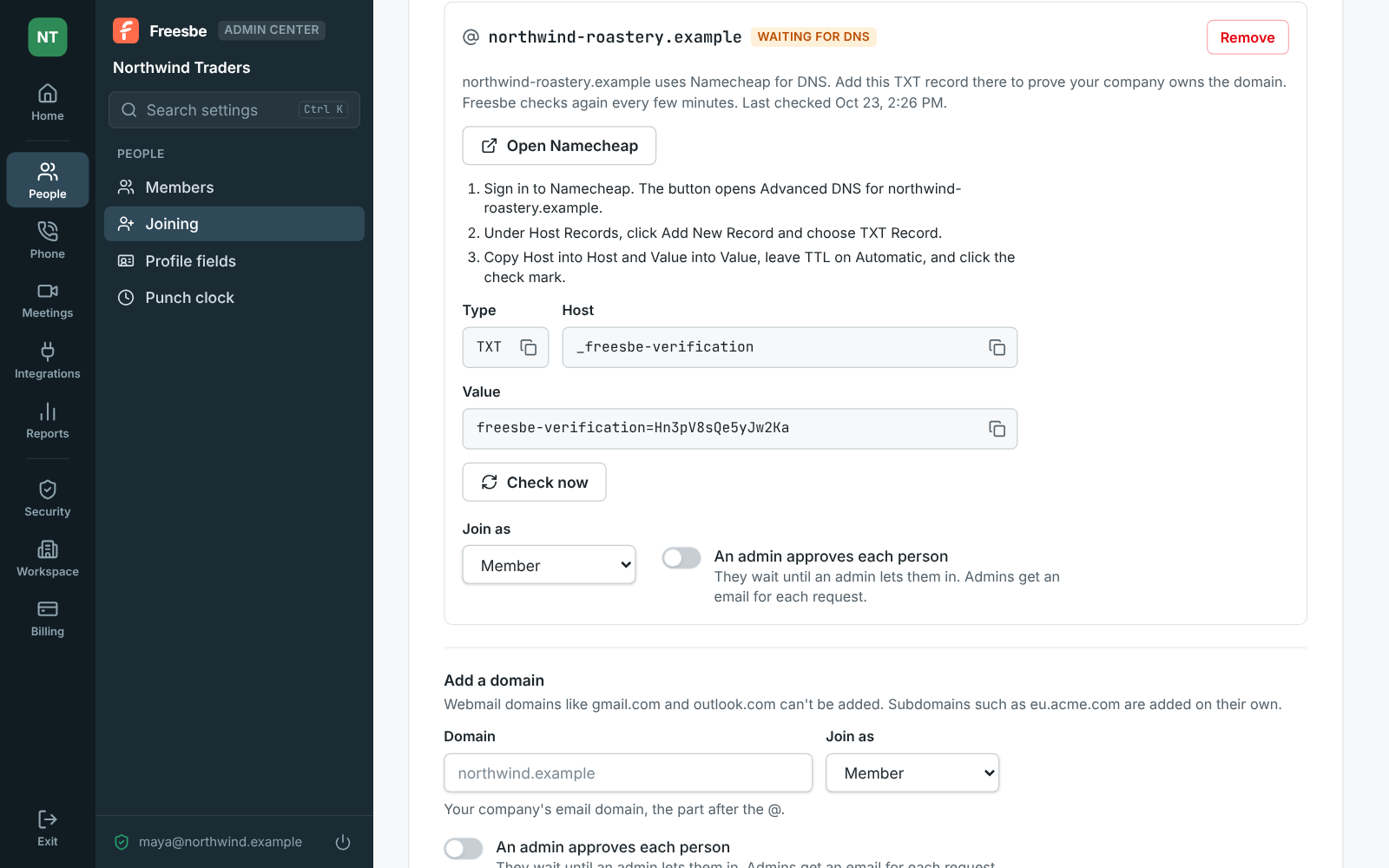
Freesbe looks for the record every few minutes for a week, or click Check now. Once it’s found, the domain shows Verified and you can remove the record. A domain that’s still waiting lets nobody in.
3. Tell new hires what to do
Section titled “3. Tell new hires what to do”Put one line in the onboarding email: “Sign up at app.freesbe.net with your Northwind address and click Join when you see Northwind Traders.” Someone who signs up with a password gets a code by email and only sees your workspace once they enter it; Google and Microsoft confirm the address themselves. So nobody can type in someone else’s work address and get in. They don’t need an invite, even while sign-up on Freesbe is otherwise invite-only.
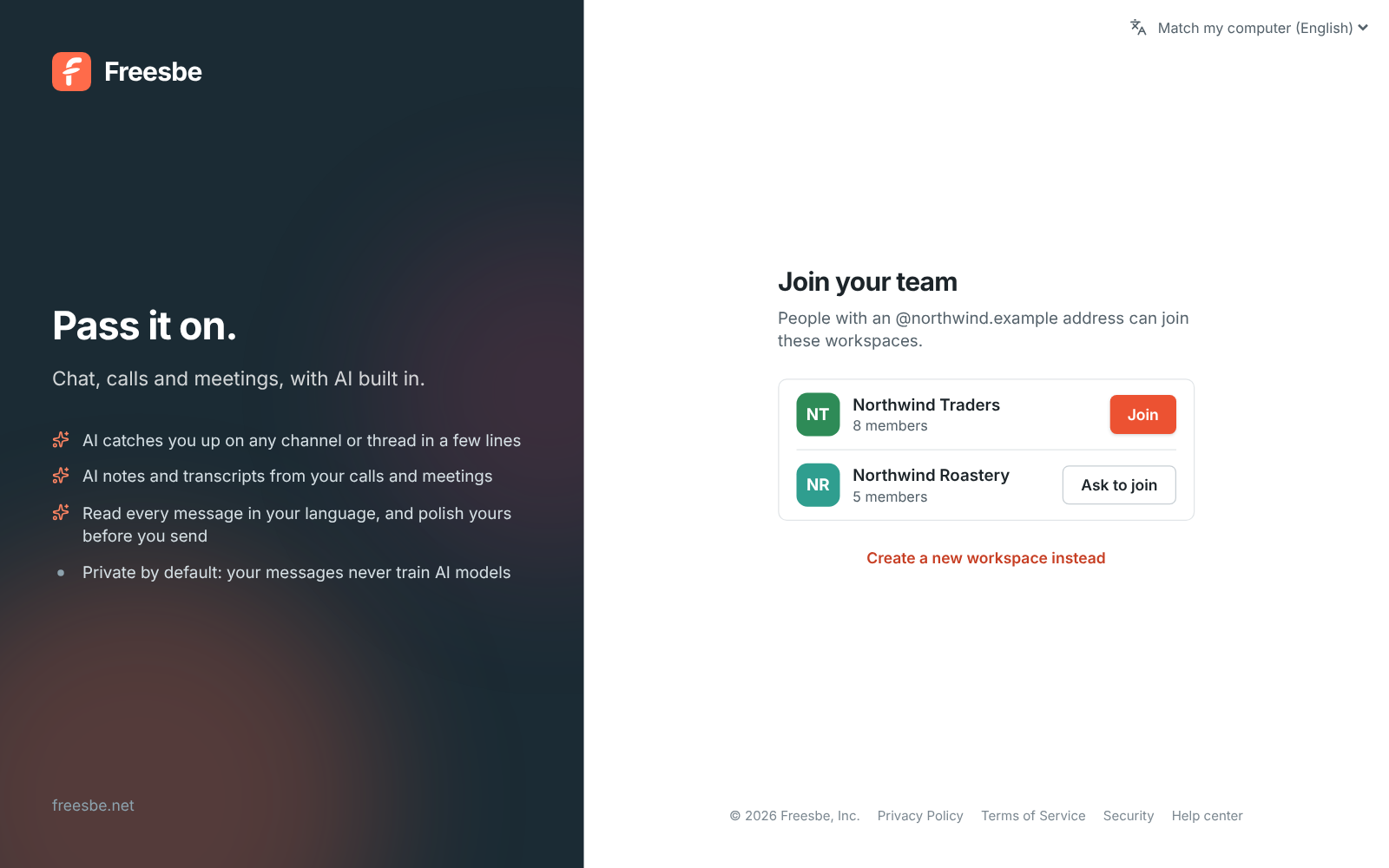
Someone who already has an account sees the same list when they open + → Create a workspace from the workspace rail.
4. Approve people, if you turned that on
Section titled “4. Approve people, if you turned that on”With approval on, the button says Ask to join. Every admin gets an email with a Review the request link, and the person shows under Waiting for approval on the same page. Click Let in or Decline; the first admin to answer decides. Both the email and the request show who is asking: when and how they signed up, the city and country they asked from (New country for your team is worth a second look), their device, and the Sign-up check: Passed, or Needs a closer look when Freesbe’s checks found something unusual. Ask someone who knows them before letting those in. Someone declined can’t ask again; send an invite if you change your mind.
- Several workspaces can verify the same domain, say one per team. People then pick which to join. A workspace can have up to 20 domains.
- Pair it with single sign-on: everyone at your domain can join on their own, and has to sign in with your work accounts.
- Adding and removing domains, and every approval or decline, show in the audit log. Remove next to a domain means new people need an invite again; everyone who already joined stays.
See Join by email domain for the details.
Answers come from the Freesbe guides and are written by AI, so check the linked guide before relying on one. Please don't include personal details such as emails or passwords.