
Roll out the punch clock for hourly staff
The punch clock is a simple time clock inside Freesbe: people clock in, take breaks and clock out from the sidebar, and admins get the hours, overtime and a CSV for payroll. It records only those punches and any notes people type, never activity, apps or screens. This rolls it out for Northwind’s warehouse team. An owner or admin turns it on; on Corporate and Enterprise a People admin can too.
Before you start
Section titled “Before you start”- The punch clock comes with the paid plans.
- Decide who it covers: everyone, or only hourly staff. Only the people covered see the clock.
- Agree the rules with whoever runs payroll: when the week starts, whether breaks are paid, and the daily and weekly overtime limits.
1. Turn it on
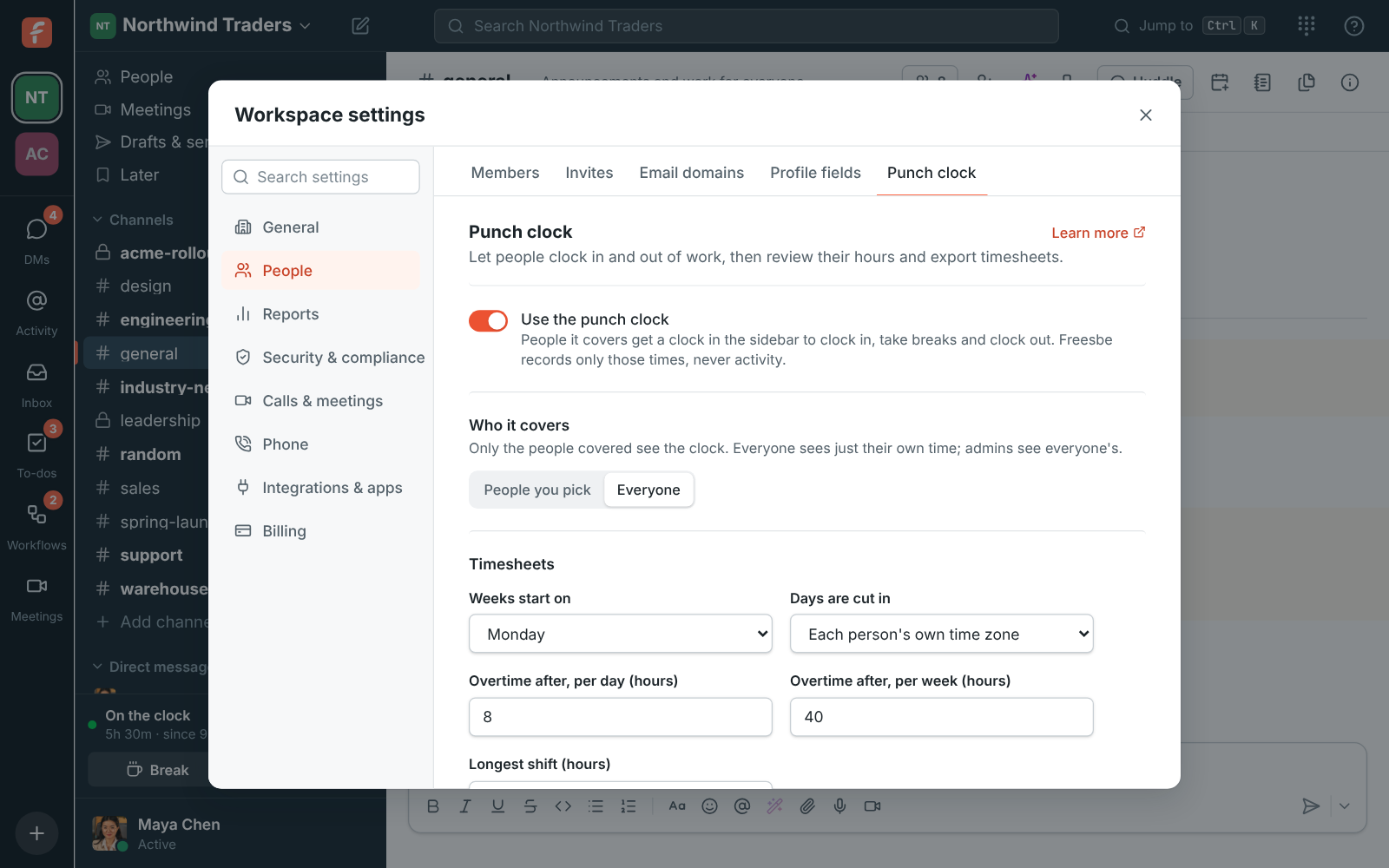
Section titled “1. Turn it on”- Open the workspace menu → Workspace settings → People → Punch clock.
- Turn on Use the punch clock.
- Under Who it covers, choose Everyone or People you pick, and pick them.
2. Set the rules
Section titled “2. Set the rules”Under Timesheets, change what doesn’t match how you pay people:
- Weeks start on: any day of the week. Monday to start with.
- Days are cut in: each person’s own time zone, or one time zone for everyone. Pick one time zone if the whole team is on one site.
- Overtime after, per day (hours) and per week (hours): 8 and 40 to start with.
- Longest shift (hours): longer shifts are flagged as a likely missing clock-out. 12 to start with.
- Breaks are paid: paid breaks count toward hours worked and overtime. Unpaid to start with.
A shift that runs past midnight counts toward the day it started.
3. Show the team the clock
Section titled “3. Show the team the clock”People covered get a clock card in the sidebar above their name:
- Clock in when they start work.
- Break when they step away, and Back to work when they return.
- Clock out when they’re done.
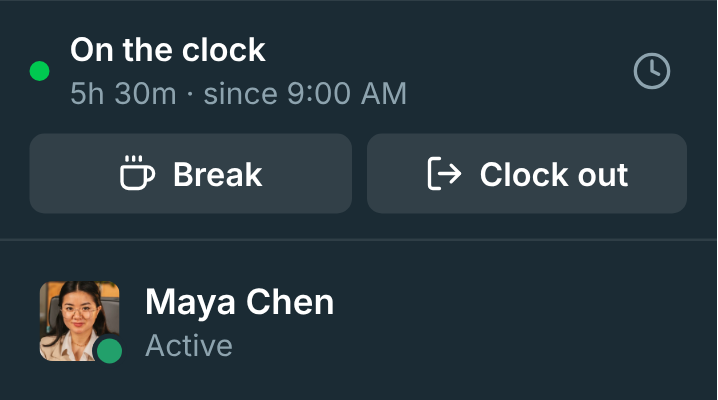
The desktop app has the same buttons in its tray menu (Clock In, Start Break, End Break, Clock Out), and the tray icon’s tooltip shows whether they’re on the clock.
Clicking the clock icon on the card opens Your time, their week day by day. Tell them they fix their own mistakes there: Add time for a shift they forgot, Change an entry’s start, end or note, or Delete one. Every change asks Why, and the reason, who changed it and what changed stay in the entry’s History, marked Edited or Added. Only they and admins can see their timesheet.
4. Review the week
Section titled “4. Review the week”The Punch clock settings page shows who is Working or On break right now, and a weekly table of everyone’s hours with On now, Overtime, Check (a shift that’s too long) and Edited flags. Click a person to see and fix their week; admin changes need a reason too and go in the history.
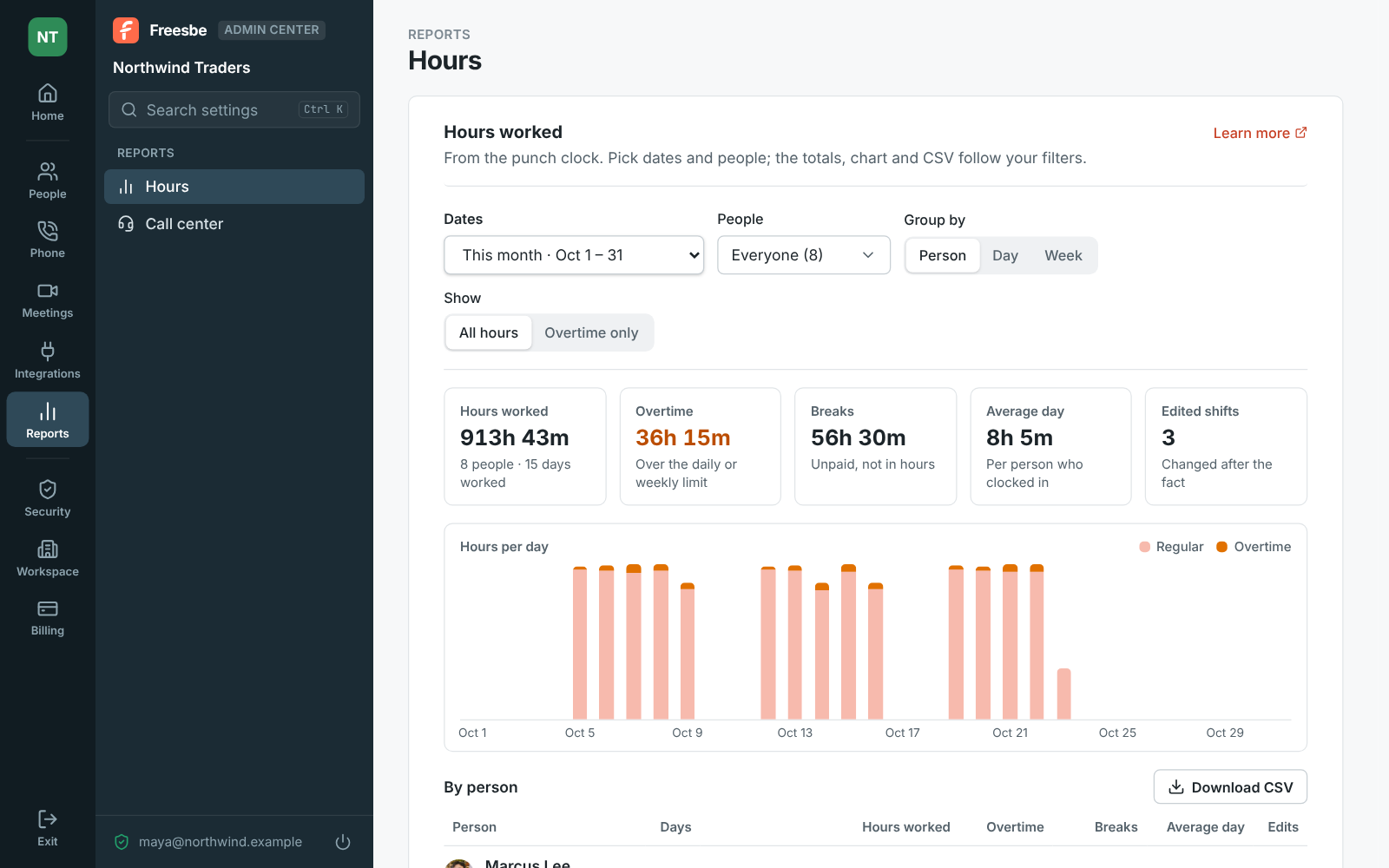
For totals over any dates, open Reports → Hours in the Admin Center: hours worked, overtime, breaks, the average day and edited shifts, grouped by person, day or week, with Overtime only to see just the people and days that went over.
5. Export for payroll
Section titled “5. Export for payroll”Two exports, for two jobs:
- Download CSV under Export on the Punch clock settings page: pick a date range and One row per shift or One row per day, for everyone.
- Download CSV on Reports → Hours: what the table shows, with decimal hours (7.50 is seven and a half) and a total row, ready for payroll.
- Overtime is counted once: each day’s time up to the daily limit is regular, until the week’s regular time reaches the weekly limit; everything past either limit is overtime.
- A workflow can start When someone clocks in or out; only admins can make one that starts for Anyone. Use it to post “On site” to a channel. See Workflows.
- Approvals, reminders and automatic clock-out aren’t available yet, so remind people about the Missing clock-out? flag.
See Punch clock and Reports → Hours for the details.
Answers come from the Freesbe guides and are written by AI, so check the linked guide before relying on one. Please don't include personal details such as emails or passwords.